
Planning Servings for Each Meal
Choose how many servings of each planned meal to make, and get a shopping list that buys exactly that much.
Plan by Servings lets you set how many servings of each meal you want to make. Use it when you cook for a crowd one night and for two the next, or when you want leftovers. Your shopping list then scales each recipe to match.
The setting is off until you turn it on. With it off, the planner has no servings controls, and your shopping list uses each recipe’s amounts as written.
Turning On Plan by Servings
Steps
-
Open Meal Plan Settings
- Go to your meal plan page
- Click the More Actions button (the three dots at the right of the toolbar)
- Select Meal Plan Settings
-
Turn On the Setting
- In the Meal Plans section, turn on Plan by servings. It saves right away.
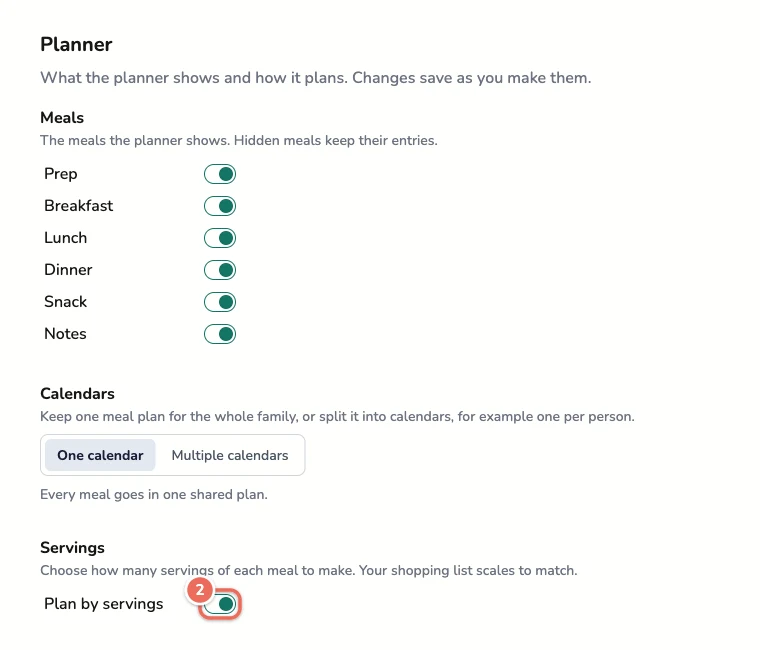
The setting applies to your whole account, so every member sees the same servings in the planner.
Note: If your account plans servings per person for a number of people to serve, Servings shows Default people to serve instead of this toggle. See Scaling Meal Servings for that way of planning.
Setting the Servings for a Meal
Each recipe in the planner gets a Total servings stepper. It starts at the number of servings the recipe makes, so nothing changes until you adjust it.
Steps
-
Find the Meal
- Go to your meal plan page
- Find the recipe card on the day you want to change
-
Change the Servings
- Click + or - on the card to change the servings by one
- Or click the number, type the servings you want, and press Enter or click away
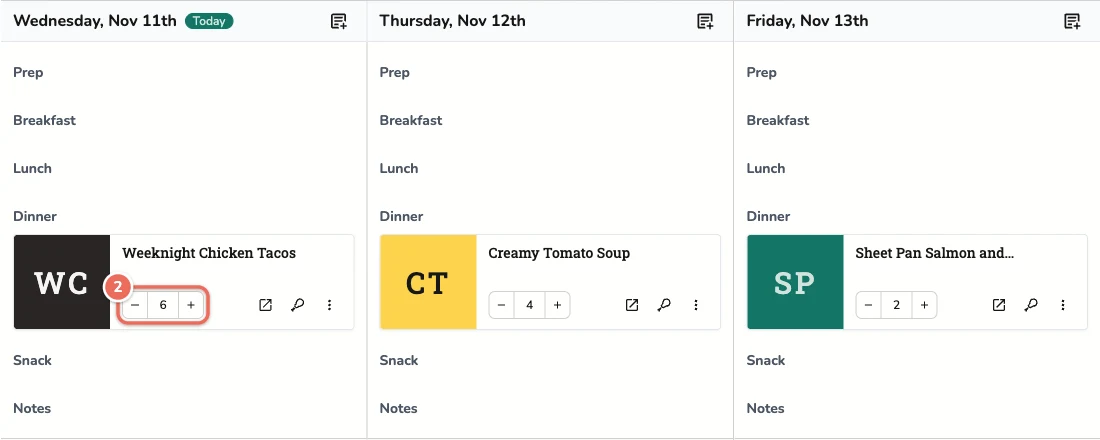
The planner saves the change right away. You can type any amount above 0 and up to 99, including fractions such as 2.5. The - button stops at 1.
Note: Leftovers and notes have no stepper. Leftovers don’t add anything to your shopping list, because you already cooked them.
Meals you copy, move or duplicate keep their servings. Meals from a template or from auto-generate start at the number of servings the recipe makes.
Shopping for What You Planned
When you sync your meal plan to a shopping list, Recipinned scales each recipe by the servings you planned. For example, a recipe that makes 4 servings and needs 2 cups of rice adds 4 cups when you plan 8 servings.
Steps
-
Open the Sync Dialog
- Go to your meal plan page
- Click Shopping List in the toolbar
-
Sync Your Plan
- Pick the dates to shop for
- Click Sync
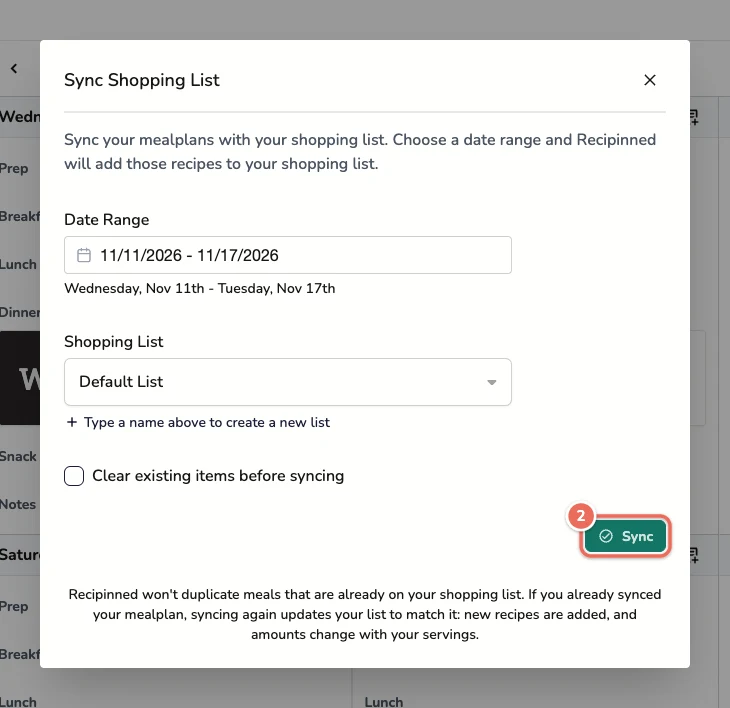
If you change the servings after a sync, sync again. Recipinned updates the amounts on your list instead of adding the meal a second time.
Note: A sync doesn’t uncheck items you already checked off. If you raise the servings after you bought something, check the amount on the list.
Turning Plan by Servings Off
Turn off Plan by servings in Meal Plan Settings. The stepper goes away, and new syncs use each recipe’s amounts as written.
Your shopping list keeps the scaled amounts until you sync with Clear existing items before syncing checked. If you turn the setting back on later, your meals still have the servings you picked.