Bulk Printing Your Recipes
Pro FeaturePro Feature Required
This feature requires a Pro account (Dietitian, Facilities, or Residential Facilities tier).
Learn more about feature access or contact us at [email protected]
Recipinned allows you to export entire cookbooks as professional PDF files, perfect for creating physical recipe collections, sharing with staff, or maintaining backup documentation.
When to Use Bulk Printing
Common Use Cases:
- Creating physical recipe binders for kitchen staff
- Sharing recipe collections with new team members
- Maintaining printed backups for operational continuity
- Providing recipes to consulting chefs or nutritionists
- Creating training materials for staff development
Step-by-Step Process
1. Navigate to Your Cookbook
- Go to the Cookbooks page in your Recipinned account
- Click on the cookbook you’d like to print
- This opens the cookbook details and contents
2. Access Export Options
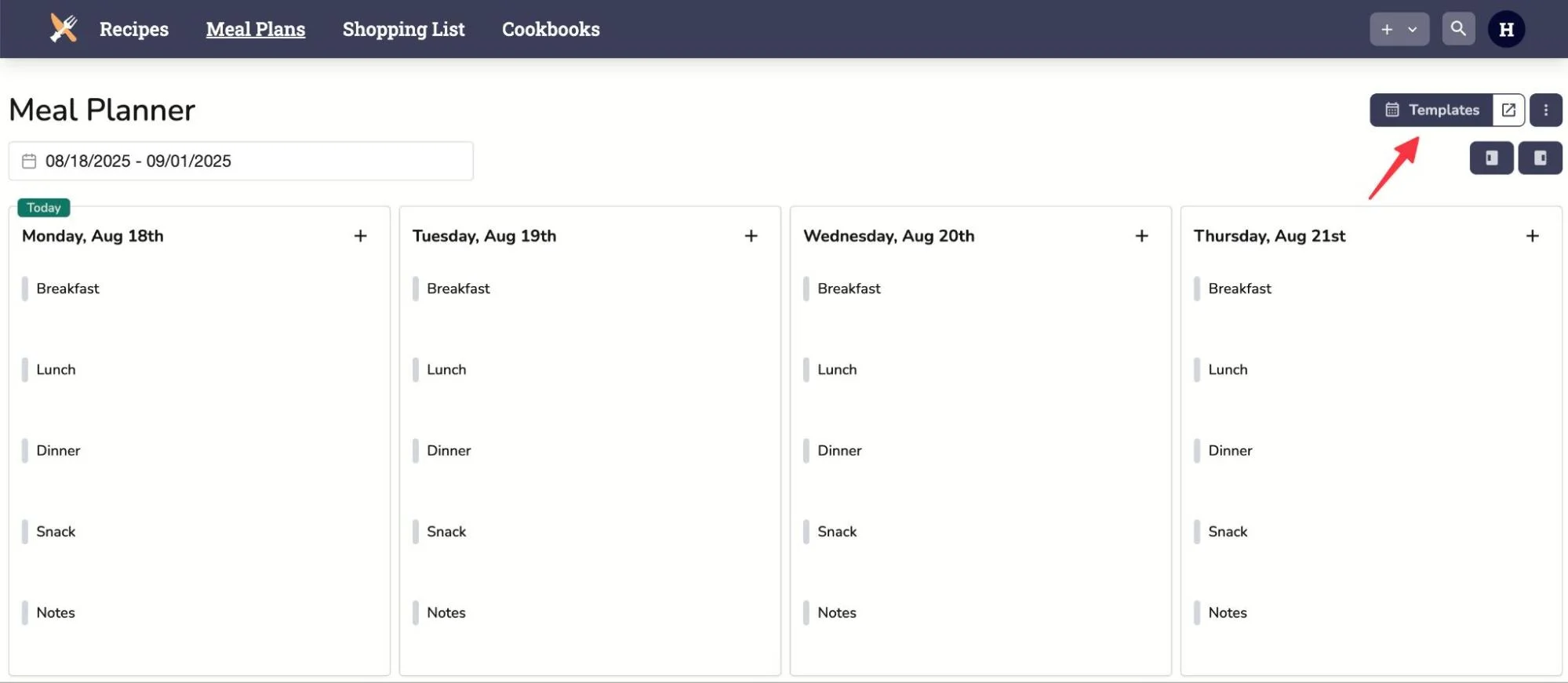
- Hover over the cookbook menu (usually represented by three dots or a gear icon)
- Select “Export as PDF” from the dropdown options
3. Configure Export Settings (Optional)
Scaling Options:
- Set the number of servings you want all recipes to scale to
- This is particularly useful if you want all recipes standardized to the same serving size
- Leave blank to use each recipe’s default serving size
Benefits of Scaling:
- Consistency: All recipes use the same serving base
- Standardization: Easier for staff to understand and follow
- Flexibility: Can create different PDFs for different serving needs
4. Download Your PDF
- Click “Download” to begin the export process
- Wait for processing: Large cookbooks may take up to 30 seconds to generate
- Save the PDF to your desired location
Understanding Export Features
Professional PDF Format
What’s Included:
- Complete recipe instructions and ingredients
- Scaled quantities based on your settings
- Professional formatting for easy reading
- Clear organization matching your cookbook structure
Quality and Formatting
Print-Ready Design:
- Clean, professional layout optimized for printing
- Clear typography that’s easy to read in kitchen environments
- Consistent formatting across all recipes
- Proper page breaks and organization
Best Practices
Before Exporting
Review Your Cookbook:
- Ensure all recipes are complete and accurate
- Check that serving sizes make sense for your operation
- Verify any special dietary notes or allergen information
Plan Your Scaling:
- Consider your typical serving needs
- Standardize to commonly used quantities (e.g., 50 servings)
- Create multiple exports if you need different serving sizes
After Export
Organization:
- Name PDF files clearly (e.g., “Main Dishes - 50 Servings - January 2025”)
- Store in organized digital folders
- Keep backup copies in multiple locations
Distribution:
- Print copies for key kitchen areas
- Share digital copies with relevant staff
- Update regularly as recipes change
Troubleshooting
Large File Processing
If export takes longer than expected:
- Large cookbooks (50+ recipes) may take up to 30 seconds
- Don’t refresh the page during processing
- Check your internet connection
- Try again if the process fails
Quality Issues
If PDF appears unclear:
- Check your browser’s print settings
- Ensure you’re using a recent version of your browser
- Try downloading again
- Contact support if issues persist
Integration with Operations
Staff Training
New Employee Onboarding:
- Provide printed recipe collections to new kitchen staff
- Use as reference materials during training
- Create specialized collections for different roles
Operational Continuity
Backup Documentation:
- Maintain printed copies in case of system issues
- Store in easily accessible locations
- Update printed materials regularly
Quality Control
Recipe Standardization:
- Use consistent serving sizes across all locations
- Ensure all staff are working from the same recipes
- Maintain version control with dated exports
Related Articles
Last revised: