Applying Meal Plan Templates to Calendar
Pro FeaturePro Feature Required
This feature requires a Pro account (Dietitian, Facilities, or Residential Facilities tier).
Learn more about feature access or contact us at [email protected]
Once your meal plan template is ready, you apply it to your meal plan calendar. From there you can adjust individual days and generate a shopping list.
Don’t have a template yet? See Creating Meal Plan Templates.
Step-by-Step Process
1. Open the Plan Menu
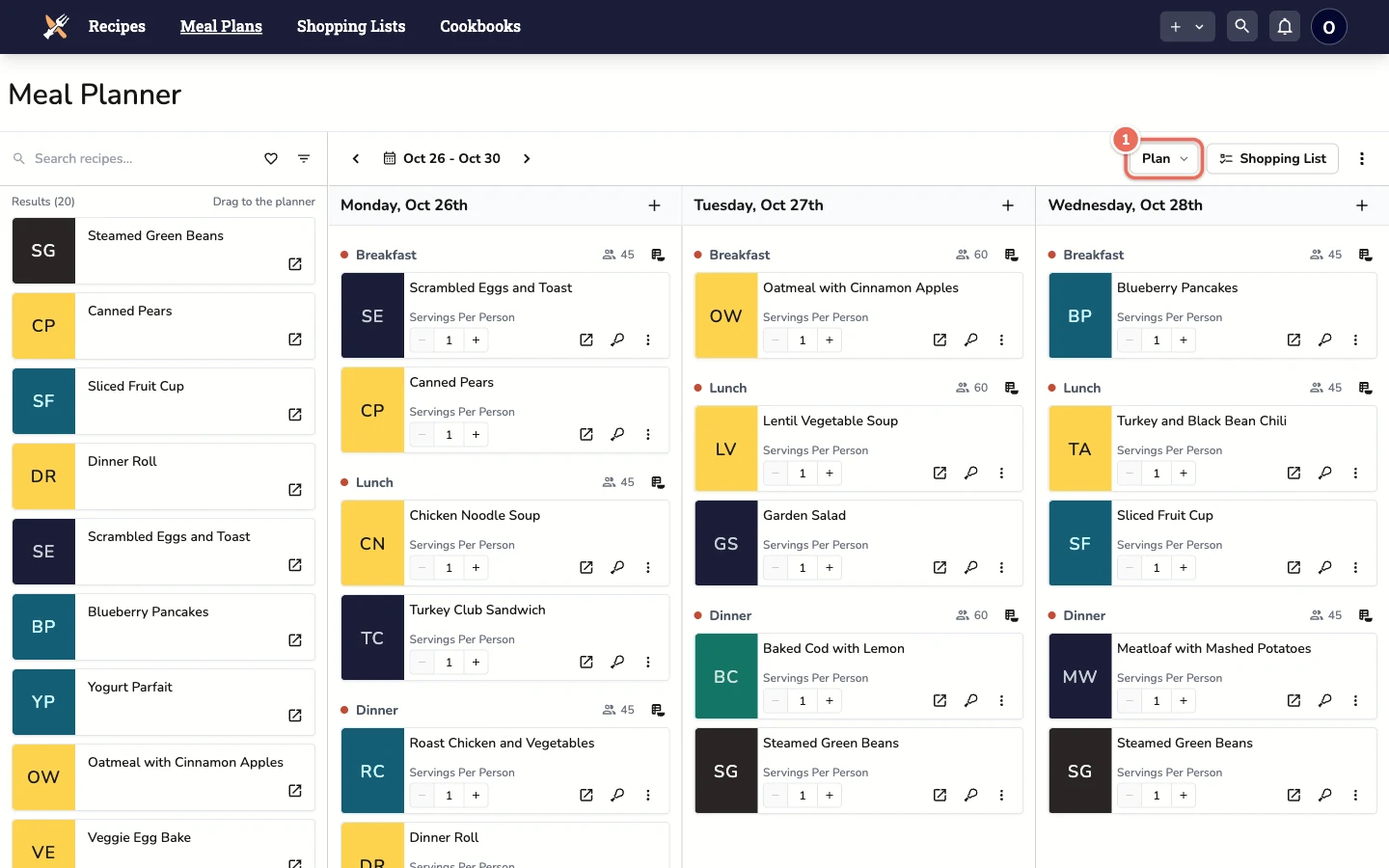
Go to Meal Plans and click the Plan button in the toolbar above the calendar.
2. Choose Apply Template
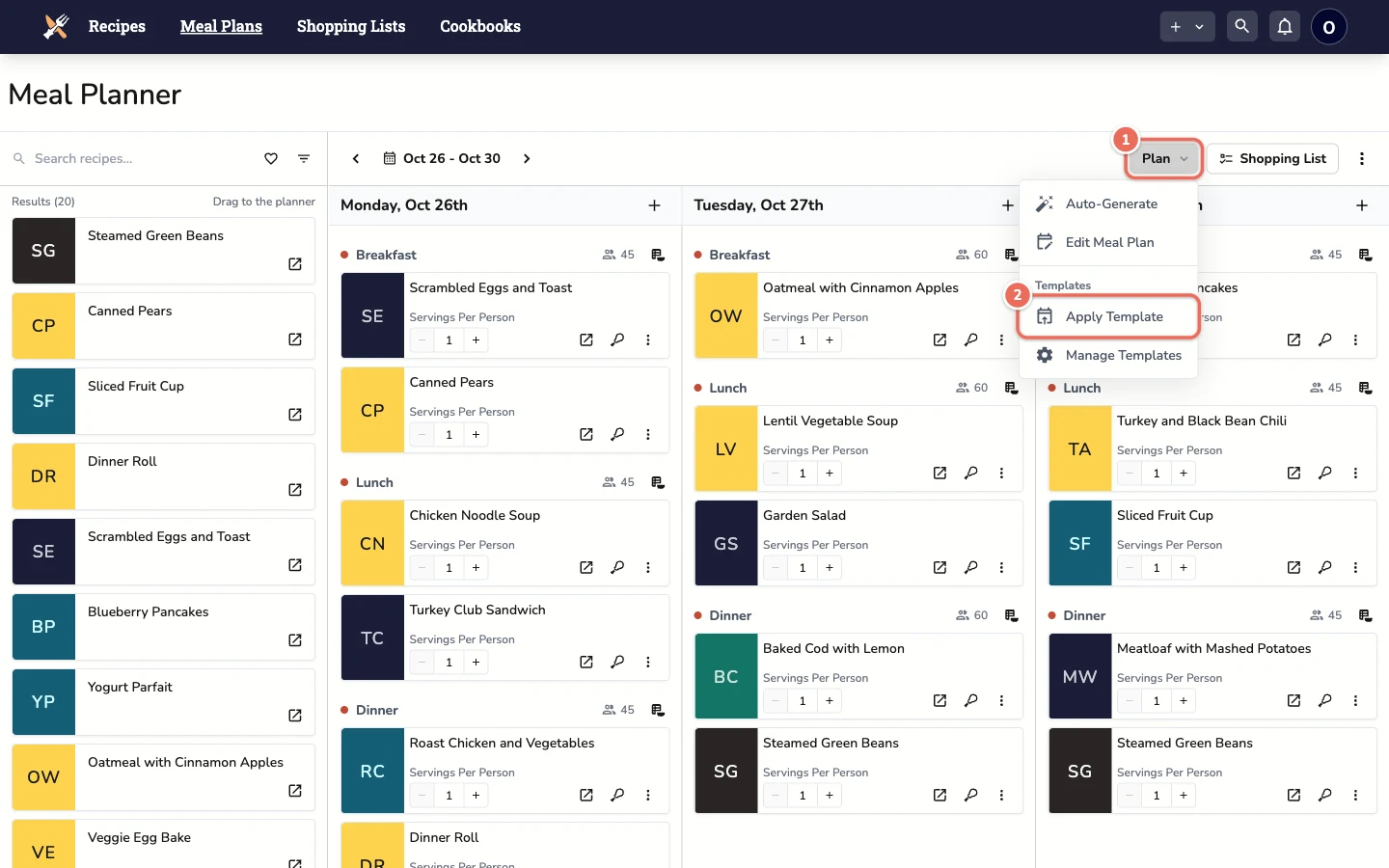
Under Templates, click Apply Template.
3. Select Your Template
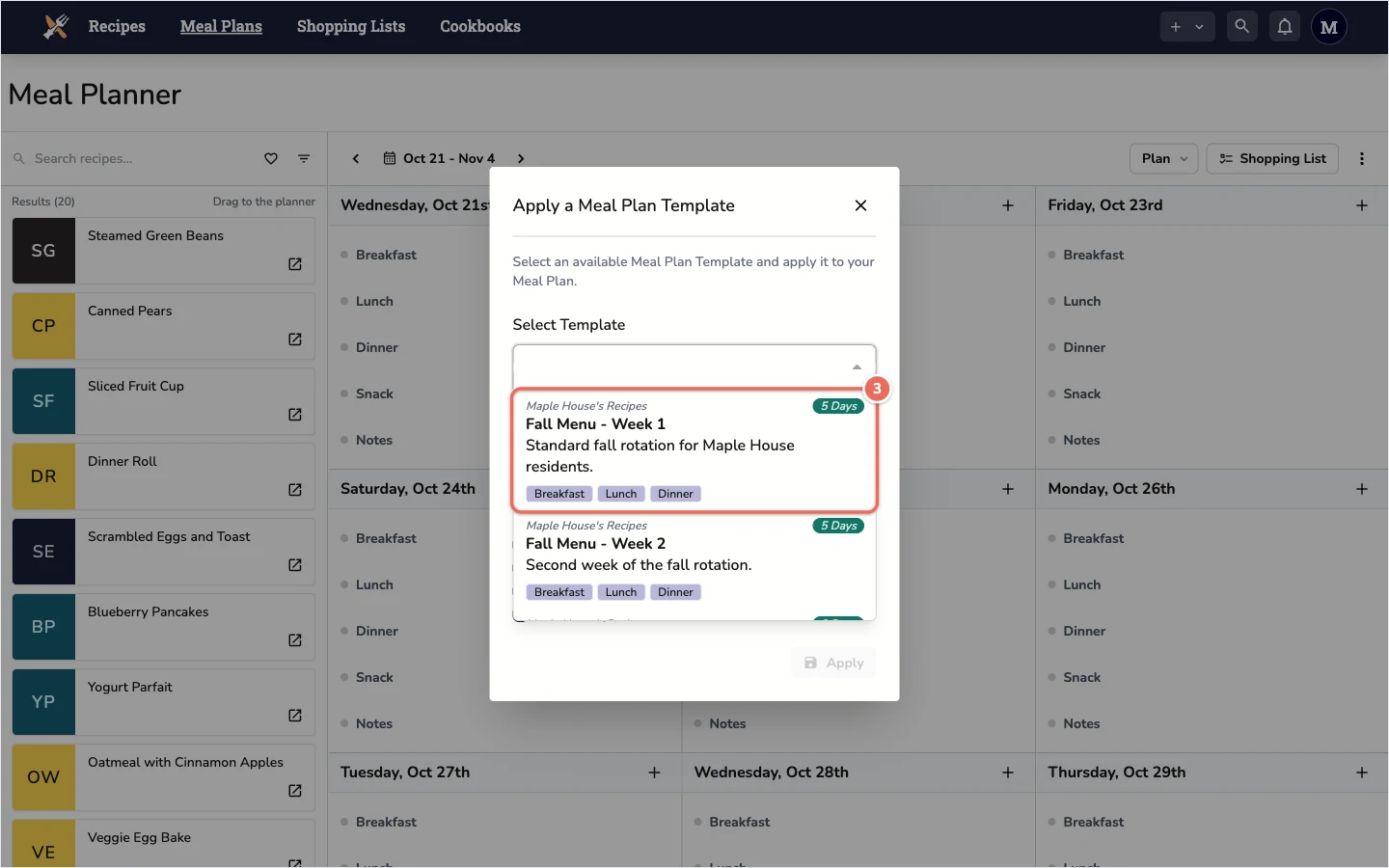
Open the Select Template dropdown and pick a template. Each option shows its cookbook, how many days it covers and which meals it includes.
4. Choose a Start Date
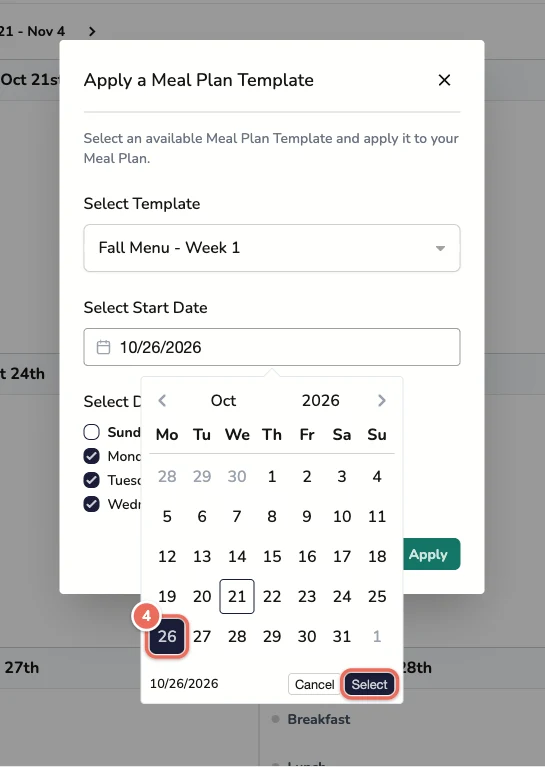
Click Select Start Date, pick the day the template should start on, then click Select. Day 1 of the template lands on this date.
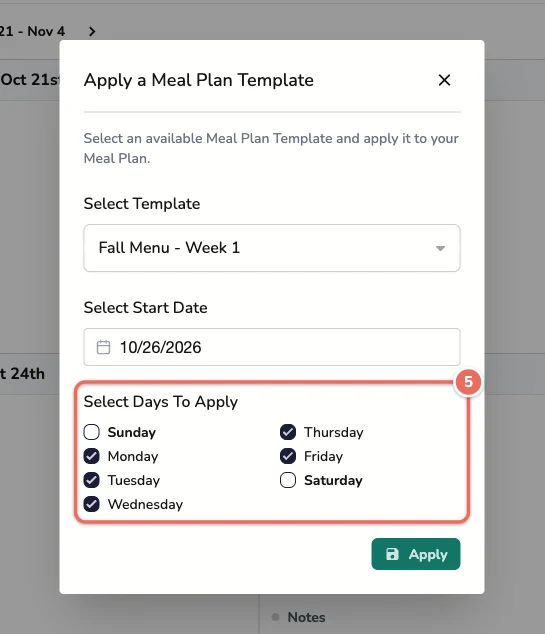
5. Choose the Days to Apply
Under Select Days To Apply, uncheck any days your facility is closed. Skipped days are left empty and the template continues on the next checked day. For example, if you uncheck Saturday and Sunday, a template’s Day 6 lands on the following Monday.
6. Apply the Template
Click Apply.
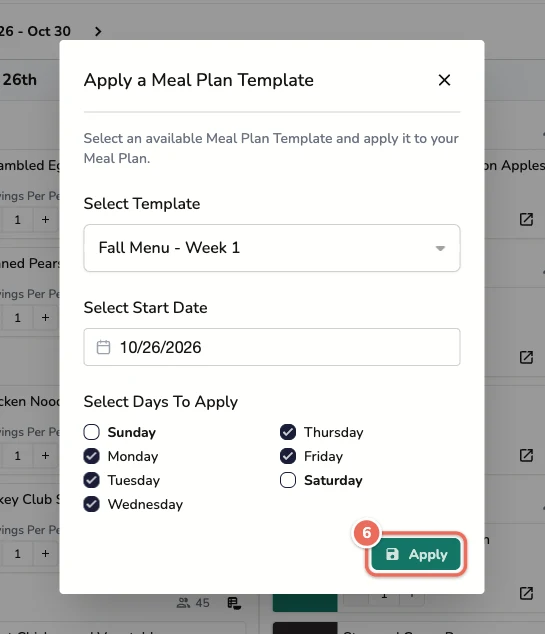
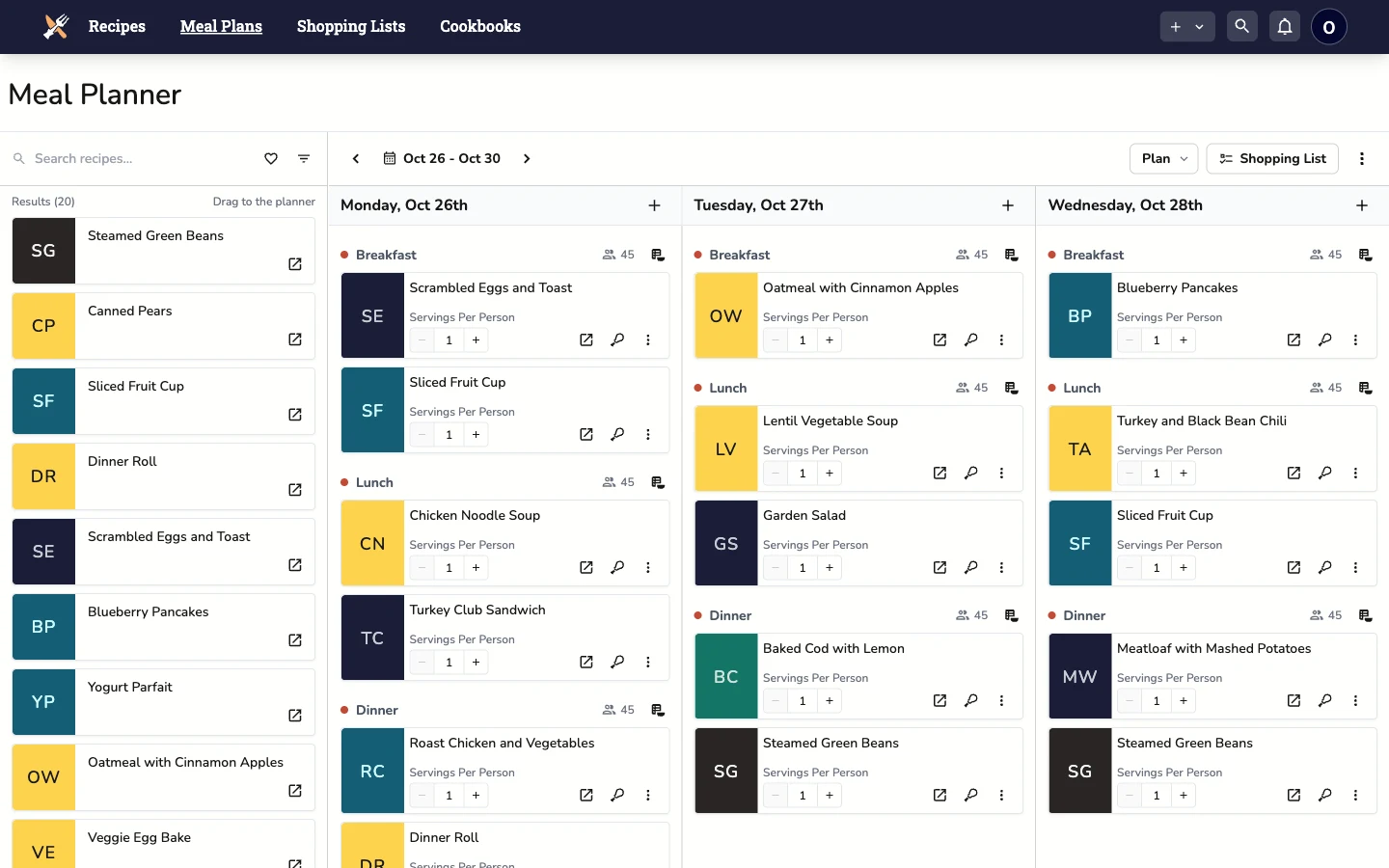
The template’s meals now appear on your calendar starting from the date you picked.
Applying from the Templates Page
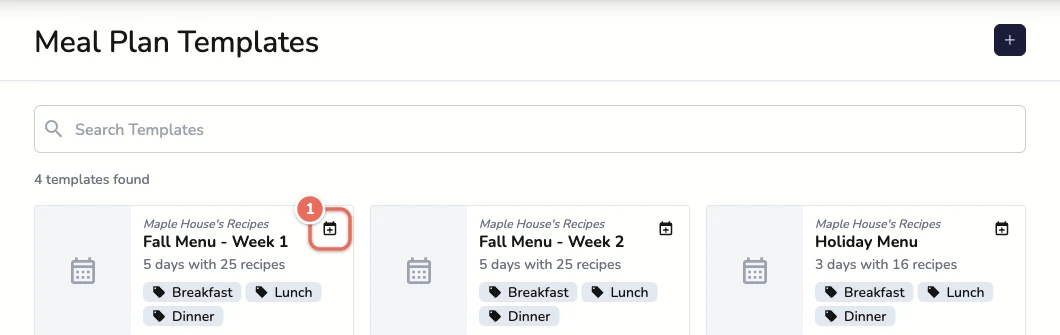
You can also apply a template from Plan > Manage Templates. Click the calendar icon in the corner of a template card to open the same dialog with that template already selected.
Making Individual Adjustments
After applying the template, you can adjust the menu for specific days, such as:
Next Steps
Once your meal plan is applied to the calendar, you can:
This flexible system allows you to maintain consistency with templates while making adjustments for specific needs or preferences.
Last revised: