Hiding Unused Meals
Many facilities only serve certain meals throughout the day. For example, you might only serve lunches or only serve lunch and dinner. Recipinned allows you to hide unused meal types to keep your meal planning interface clean and focused.
Why Hide Unused Meals?
Hiding unused meals helps you:
- Simplify your view - Only see the meals you actually serve
- Reduce confusion - Eliminate empty meal slots from your planning
- Streamline workflow - Focus on the meals that matter to your operation
Step-by-Step Instructions
1. Open Meal Plan Settings
- Navigate to your meal plan page
- Click the More Actions button (the three dots at the right of the toolbar)
- Select Meal Plan Settings
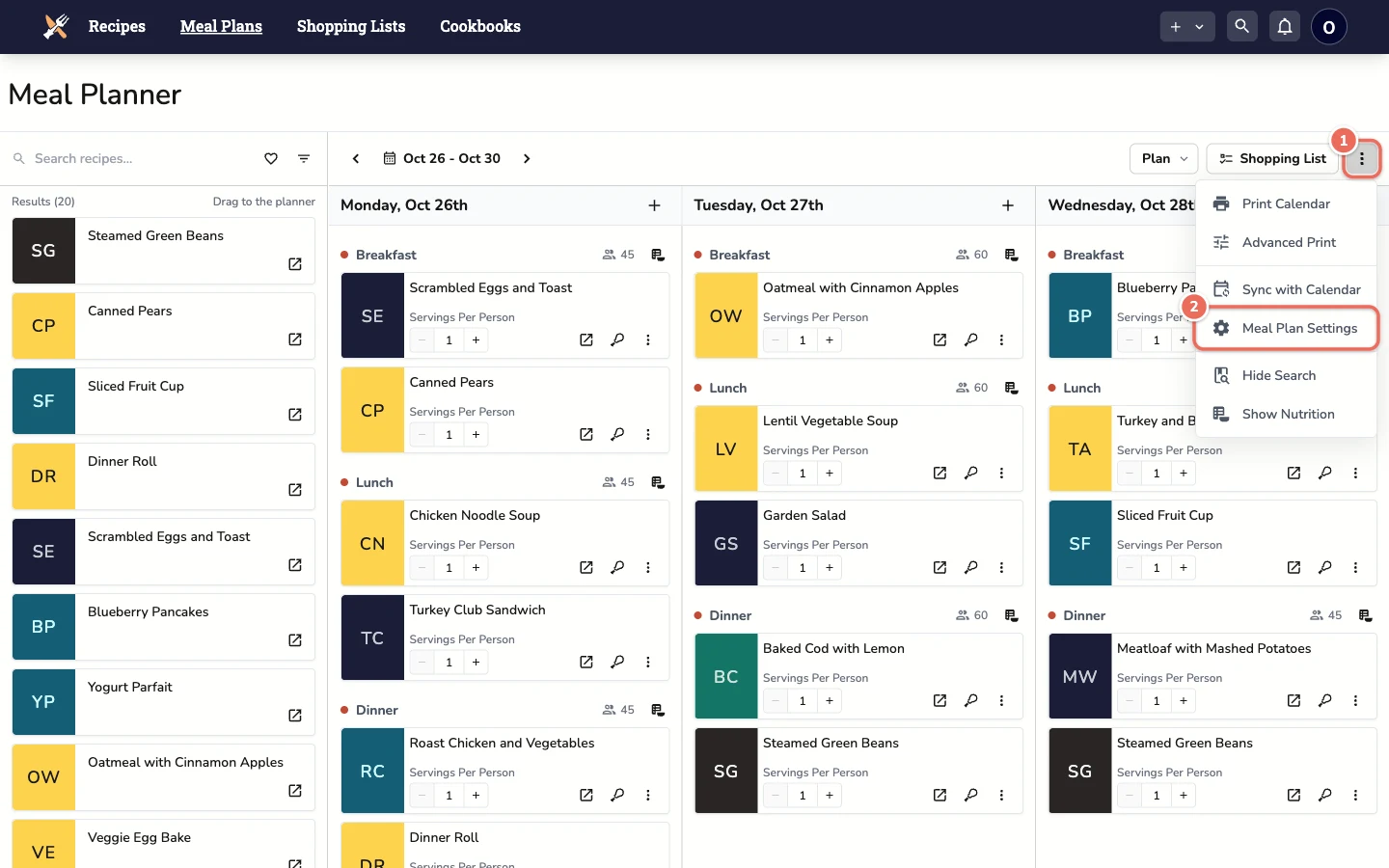
Note: For facility accounts, only a site admin can change meal plan settings. Staff can view them, but saving shows an error.
2. Configure Meal Types
-
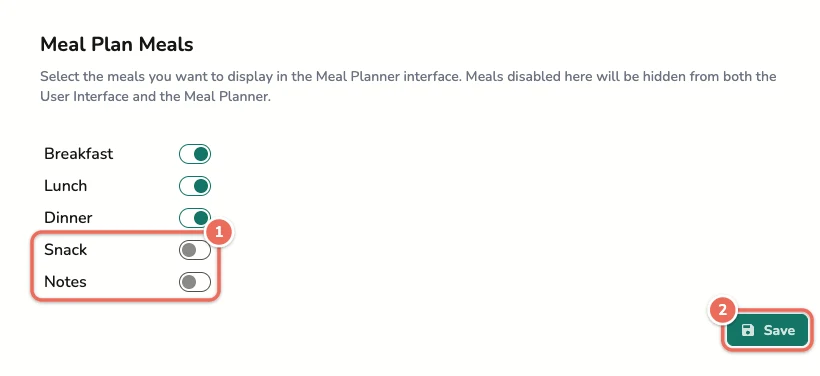
Under Meal Plan Meals you’ll see a toggle for each meal type:
- Breakfast
- Lunch
- Dinner
- Snack
- Notes
-
Toggle off the meals you don’t serve at your facility
-
Click Save under that section to apply your changes
3. View Updated Meal Plan
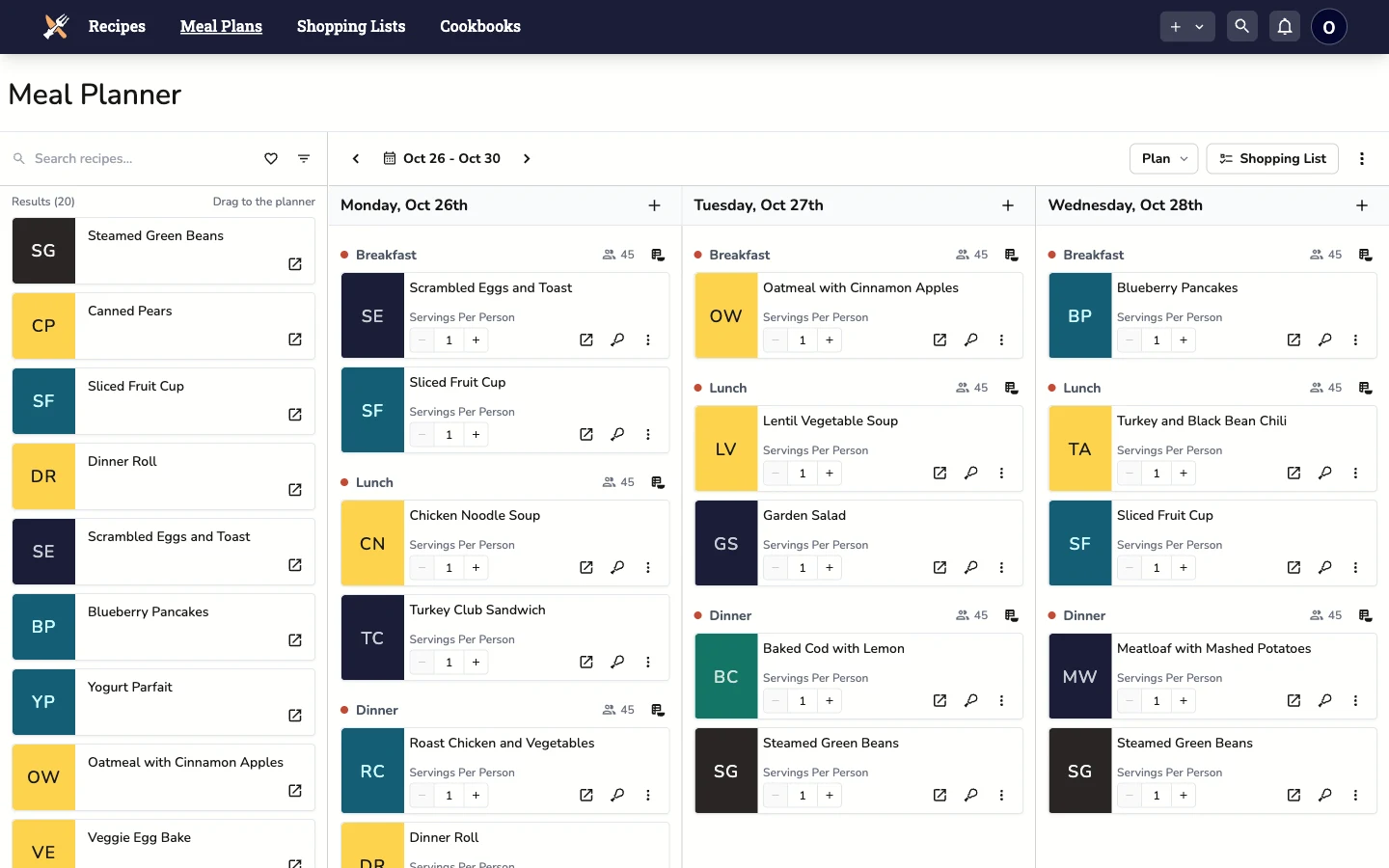
After saving, your meal plan only shows the meal types you’ve enabled. In this example Snack and Notes are hidden, so each day shows only Breakfast, Lunch and Dinner.
Example Use Cases
Senior Living Facility: Serves all meals → Keep all meal types enabled
School Cafeteria: Only serves lunch → Hide breakfast, dinner, and snack
Corporate Cafeteria: Serves lunch and snacks → Hide breakfast and dinner
Community Kitchen: Serves lunch and dinner → Hide breakfast and snack
Making Changes Later
You can change these settings anytime by returning to Meal Plan Settings and adjusting the toggles. This flexibility allows you to adapt as your facility’s needs change.
Related Articles
Last revised: