Clearing Your Meal Plan
Sometimes you need to clear portions of your meal plan to start fresh - whether you’re making major menu changes, switching templates, or correcting planning errors. Recipinned makes it easy to clear specific date ranges without affecting your entire meal plan.
Video Tutorial
When to Clear Meal Plans
Common scenarios include:
- Template changes: Switching to a different meal plan template
- Major menu overhaul: Completely changing your menu approach
- Seasonal transitions: Moving from summer to winter menus
- Compliance updates: Adapting to new nutritional requirements
- Planning errors: Starting over after incorrect planning
Step-by-Step Clearing Process
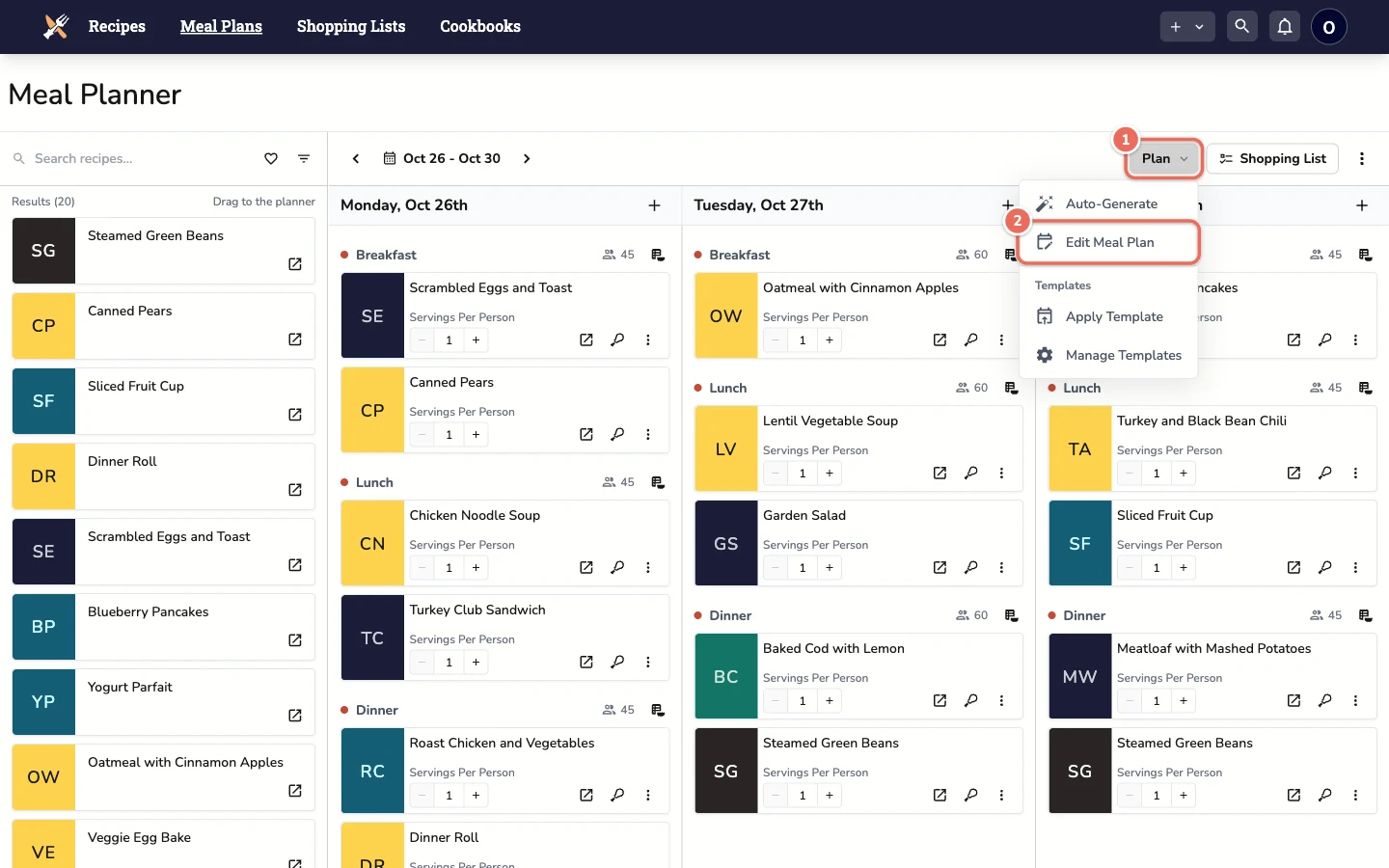
1. Open Edit Meal Plan
From the meal plan page, click the Plan button, then click Edit Meal Plan.
2. Choose Delete and a Date Range
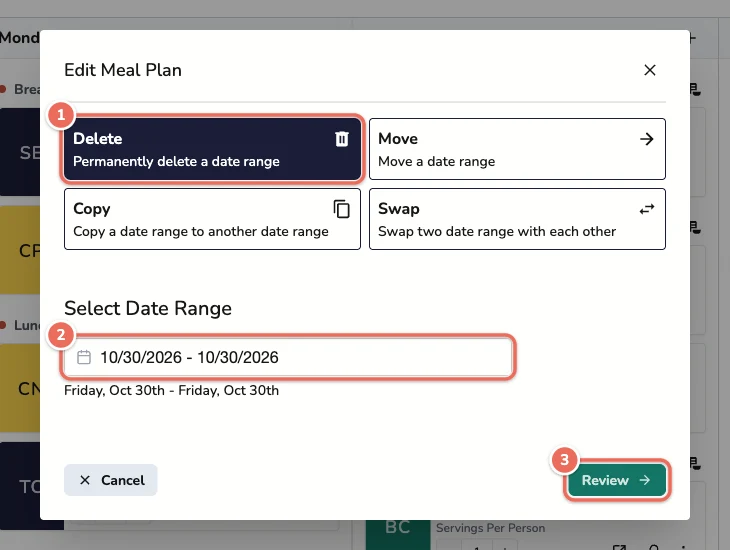
- Select Delete
- Under Select Date Range, pick the first and last day you want to clear, then click Select
- Be specific to avoid clearing more than intended
- Click Review
3. Confirm
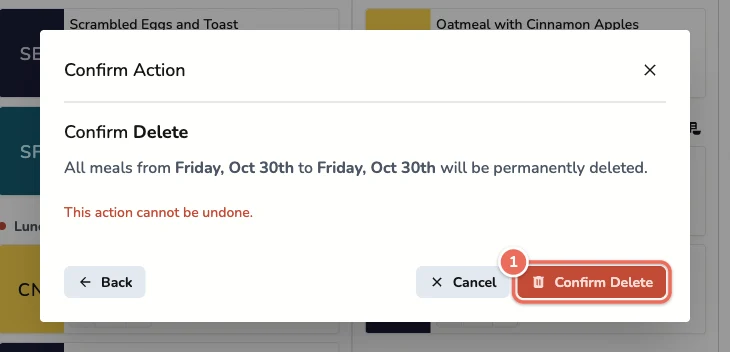
Recipinned shows exactly which dates will be cleared. Check them, then click Confirm Delete. Click Back if you need to change the range.
Important Considerations
Data Loss Warning
⚠️ Clearing is permanent - Once you clear a meal plan section, you cannot undo this action. Make sure you really want to remove the selected dates.
What Gets Cleared
When you clear a date range, you remove:
- All planned meals for those dates
- Associated serving calculations
- Day-specific overrides and adjustments
What Remains Unchanged
Clearing does not affect:
- Your meal plan templates (these remain available)
- Default serving settings
- Shopping lists already generated
- Nutritional analysis history
Best Practices
Before Clearing
- Screenshot or note important settings you might want to replicate
- Generate any needed shopping lists for the current plan
- Confirm date ranges to avoid clearing wrong dates
After Clearing
- Reapply templates as needed for the cleared dates
- Reconfigure serving sizes if different from defaults
- Regenerate shopping lists for the updated meal plan
Alternative to Full Clearing
Instead of clearing entire date ranges, consider:
- Individual meal substitutions for minor changes
- Serving adjustments for attendance changes
- Template overlays for partial updates
Related Articles
Last revised: