Substituting Menu Items
Sometimes you need to make last-minute changes to your meal plan due to supply issues, dietary needs, or other operational requirements. Recipinned makes it easy to substitute menu items while automatically maintaining nutritional compliance.
When You Might Need Substitutions
Common scenarios include:
- Supply issues: Bad shipment or out-of-stock ingredients
- Dietary accommodations: Allergies or special dietary needs
- Seasonal changes: Using available seasonal ingredients
- Cost management: Switching to more cost-effective options
- Variety: Adding diversity to prevent menu fatigue
Step-by-Step Substitution Process
Example: Swapping Sliced Fruit for Canned Pears
Let’s walk through replacing sliced fruit with canned pears due to a bad fruit shipment.
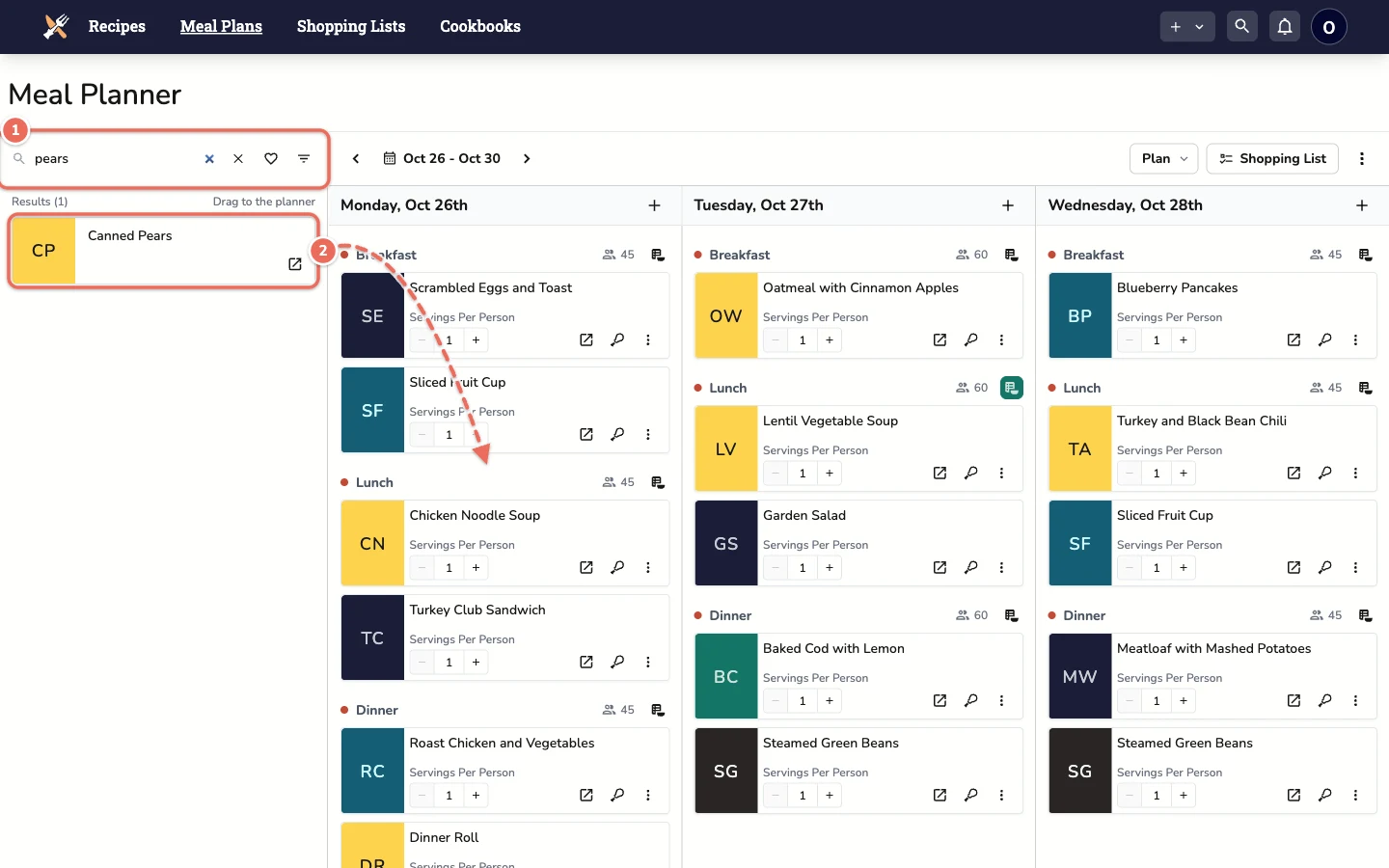
1. Search for the Replacement
The recipe search pane sits on the left of the meal planner. If it’s hidden, click the More Actions button (the three dots at the right of the toolbar) and select Show Search.
You can search recipes two ways:
- By name: Type the item you’re looking for, such as “pears”
- By tag: Click the filter button next to the search box and pick a tag (e.g., “fruit”, “vegetable”, “protein”)
2. Drag It Onto the Meal
Drag the new item (canned pears) from the search results onto the meal in your plan.
3. Remove the Old Item
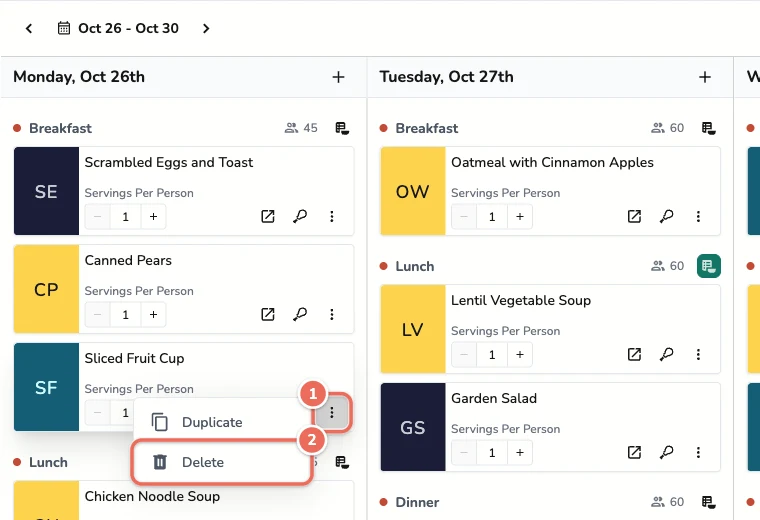
- Find the original item (sliced fruit)
- Click the More actions button (three dots) on its card
- Select Delete
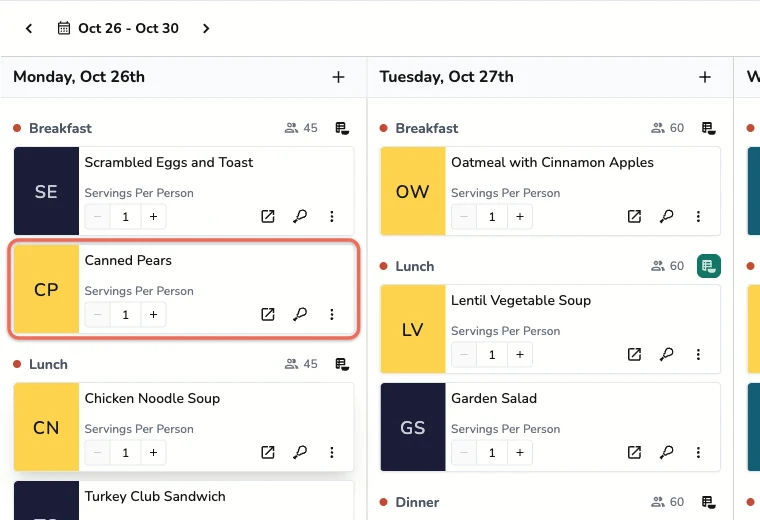
The meal now has the replacement in place of the original.
4. Verify Nutritional Compliance (Advanced Feature)
Note: Nutrition analysis is an advanced feature of Recipinned that requires separate enrollment. Contact us to learn more about nutrition tracking features.
If you have Recipinned’s nutrition features enabled, you can check the meal after making the substitution:
- Open the nutrition pane - Click the More Actions button and select Show Nutrition
- Select the meal - Click the nutrition icon next to the meal heading (it shows “Select Meal for Analysis” when you hover)
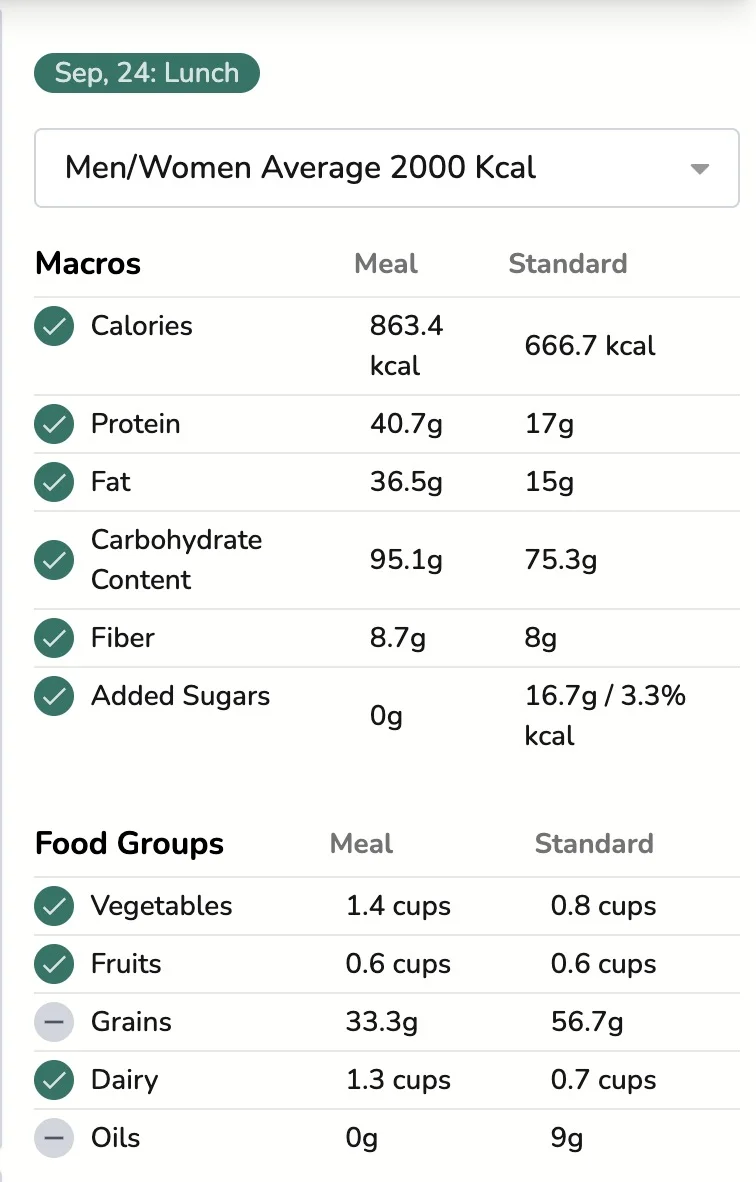
- Verify all categories are still compliant:
- Green indicators: Requirements are met
- Red indicators: Requirements not met (needs attention)
- Gray indicators: Can be ignored (optional categories)
Best Practices for Substitutions
Nutritional Equivalency
When substituting items, try to maintain similar nutritional profiles:
- Fruits for fruits: Maintain vitamin and fiber content
- Proteins for proteins: Keep protein levels consistent
- Vegetables for vegetables: Preserve mineral and vitamin content
Quantity Considerations
The system automatically adjusts quantities based on:
- Number of servings
- Nutritional density of the new item
- Required nutritional targets
Documentation
Consider keeping notes about substitutions for:
- Future meal planning reference
- Dietary compliance records
- Cost tracking and analysis
Troubleshooting Substitutions
If Nutritional Requirements Turn Red
- Try a different substitute with better nutritional alignment
- Add complementary items to balance the nutrition
- Adjust serving sizes if the new item is more/less nutritionally dense
If You Can’t Find the Right Substitute
- Use broader search tags (e.g., “side dish” instead of specific ingredients)
- Contact support for help finding alternatives
- Create custom recipes if you have specific items not in the database
Related Articles
Last revised: