Creating Meal Plan Templates
Pro FeaturePro Feature Required
This feature requires a Pro account (Dietitian, Facilities, or Residential Facilities tier).
Learn more about feature access or contact us at [email protected]
A meal plan template is a reusable menu, such as “Fall Menu - Week 1”. Instead of dates, a template has numbered days (Day 1, Day 2, and so on). You build it once and apply it to your calendar whenever you need it.
Templates are saved in a cookbook, so everyone who can edit that cookbook can edit the template.
Step-by-Step Process
1. Open Manage Templates
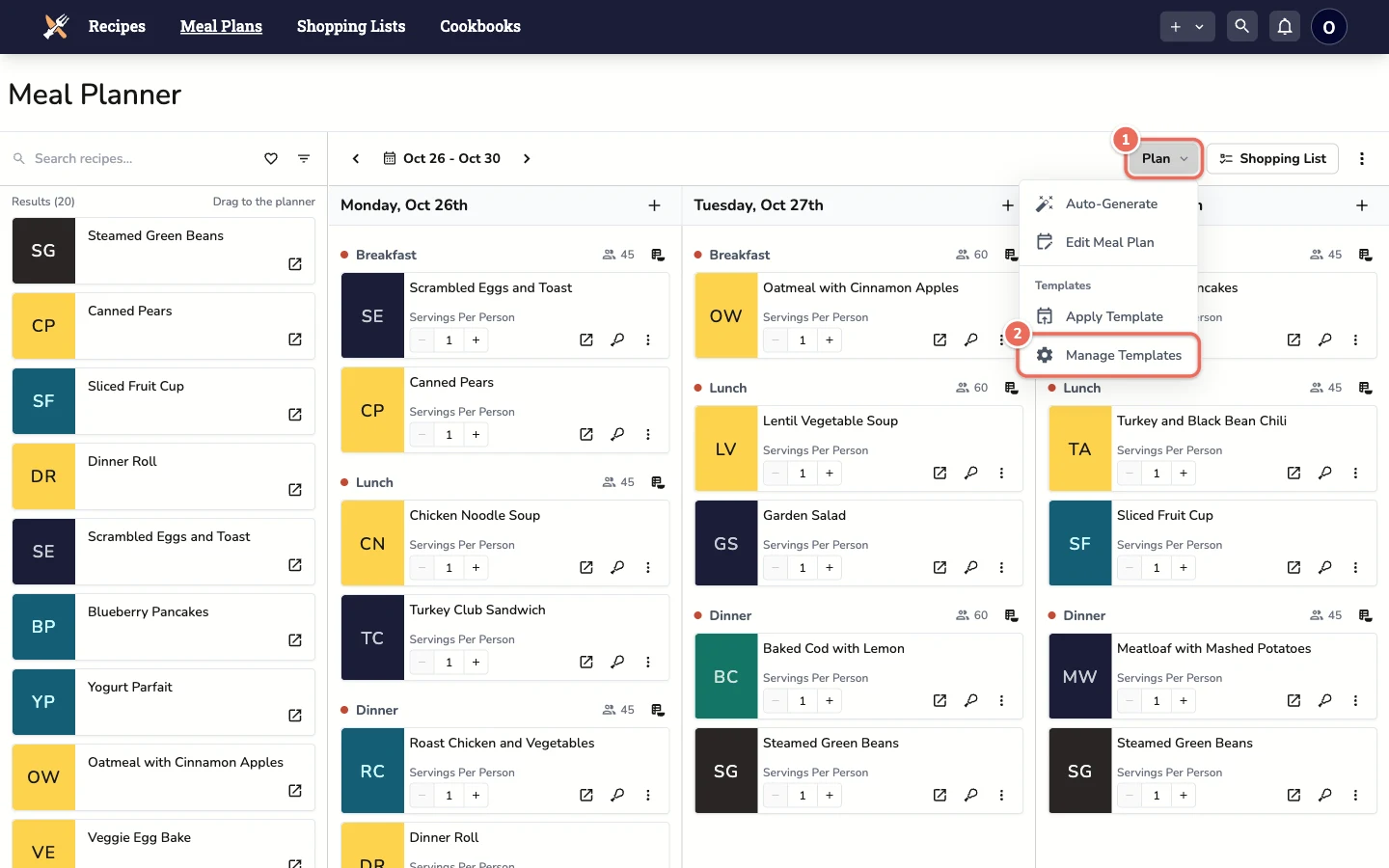
Go to Meal Plans, click the Plan button, then click Manage Templates.
2. Create a New Template
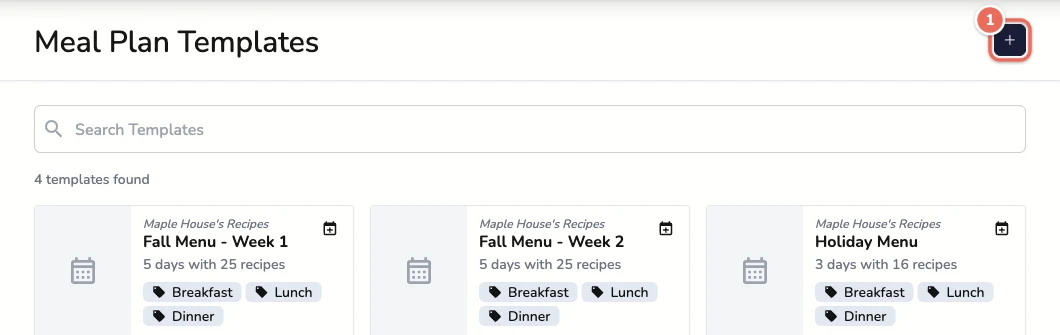
On the Meal Plan Templates page, click the + button.
3. Fill In the Template Details
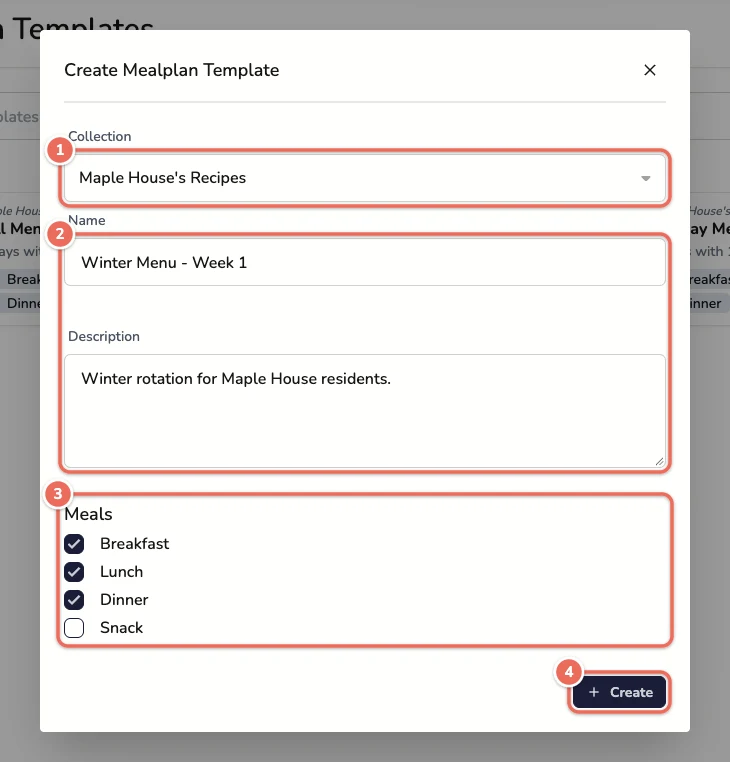
- Collection - the cookbook the template is saved in. Only cookbooks you can edit are listed.
- Name and Description - use a name your team will recognize, like “Winter Menu - Week 1”.
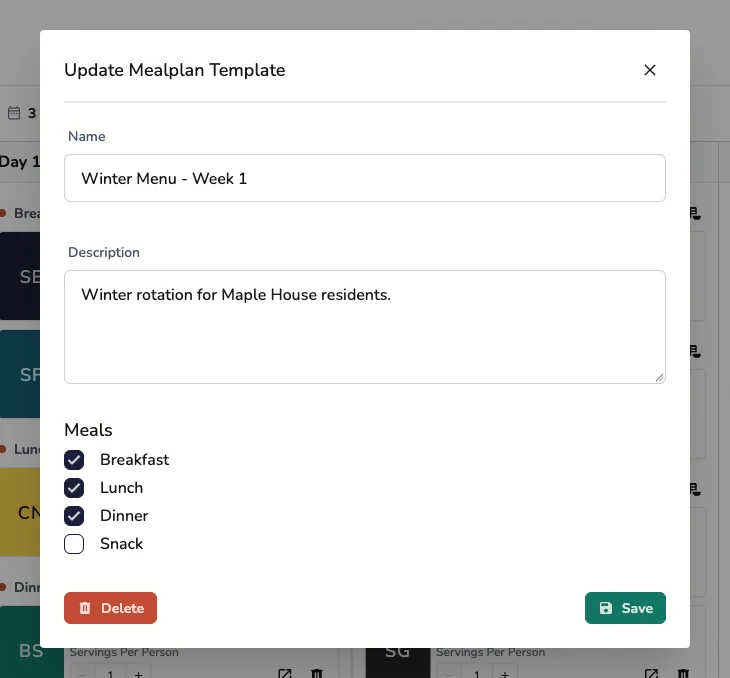
- Meals - check the meals this template plans for. Uncheck any your facility doesn’t serve.
- Click Create.
4. Add Days
The template opens in the editor. Click Add Day in the toolbar, or the Add Day tile after the last day, for each day of your rotation.
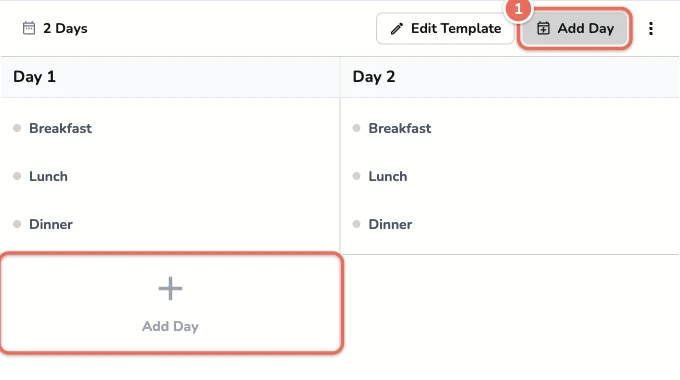
Note: A day is saved once it has at least one recipe. Empty days disappear when you leave the page.
5. Add Recipes
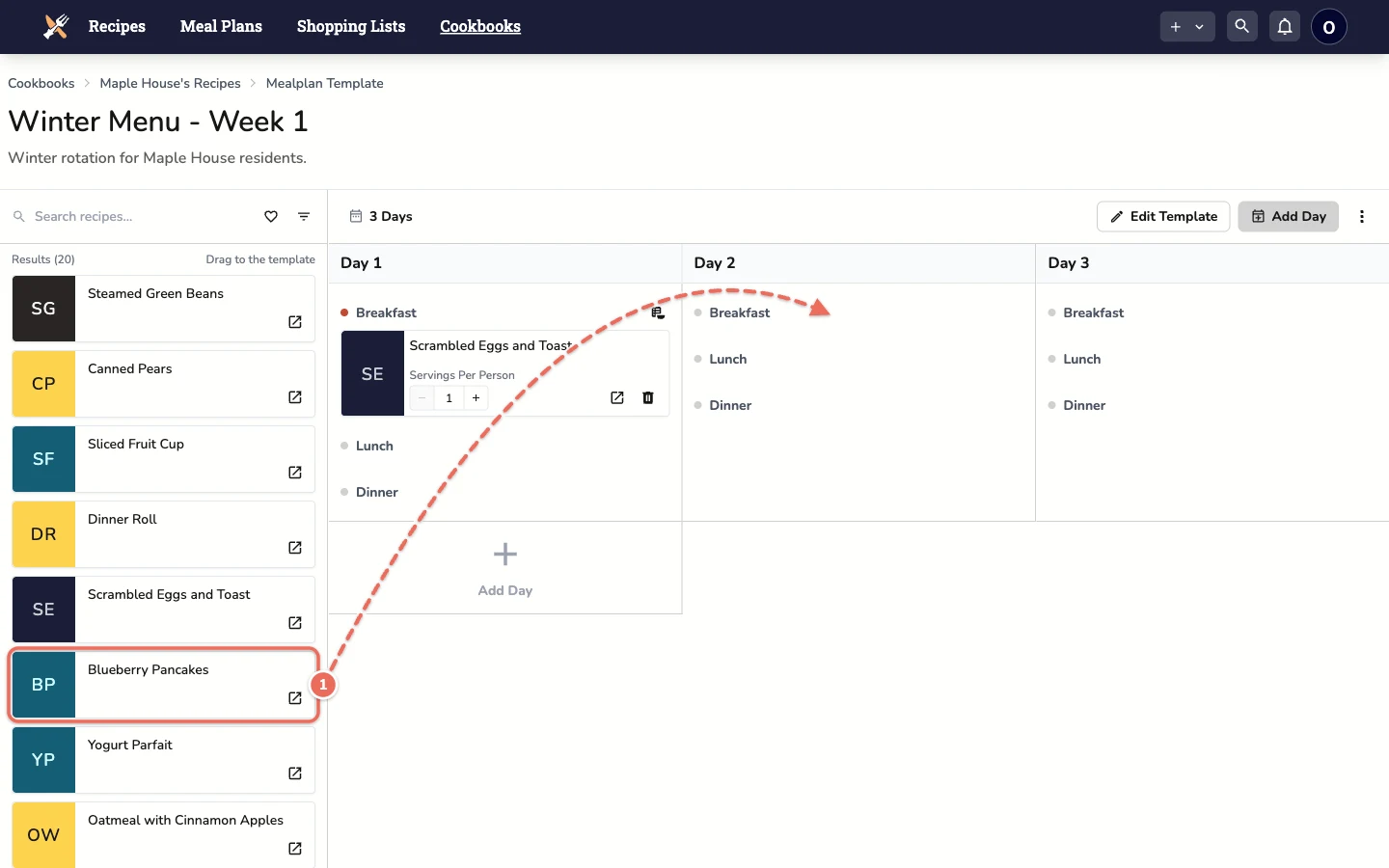
Find a recipe in the search pane on the left and drag it onto a meal in one of the days. Use the filter button next to the search box to narrow results by tag.
6. Fine-Tune the Template
Changes save as you make them.
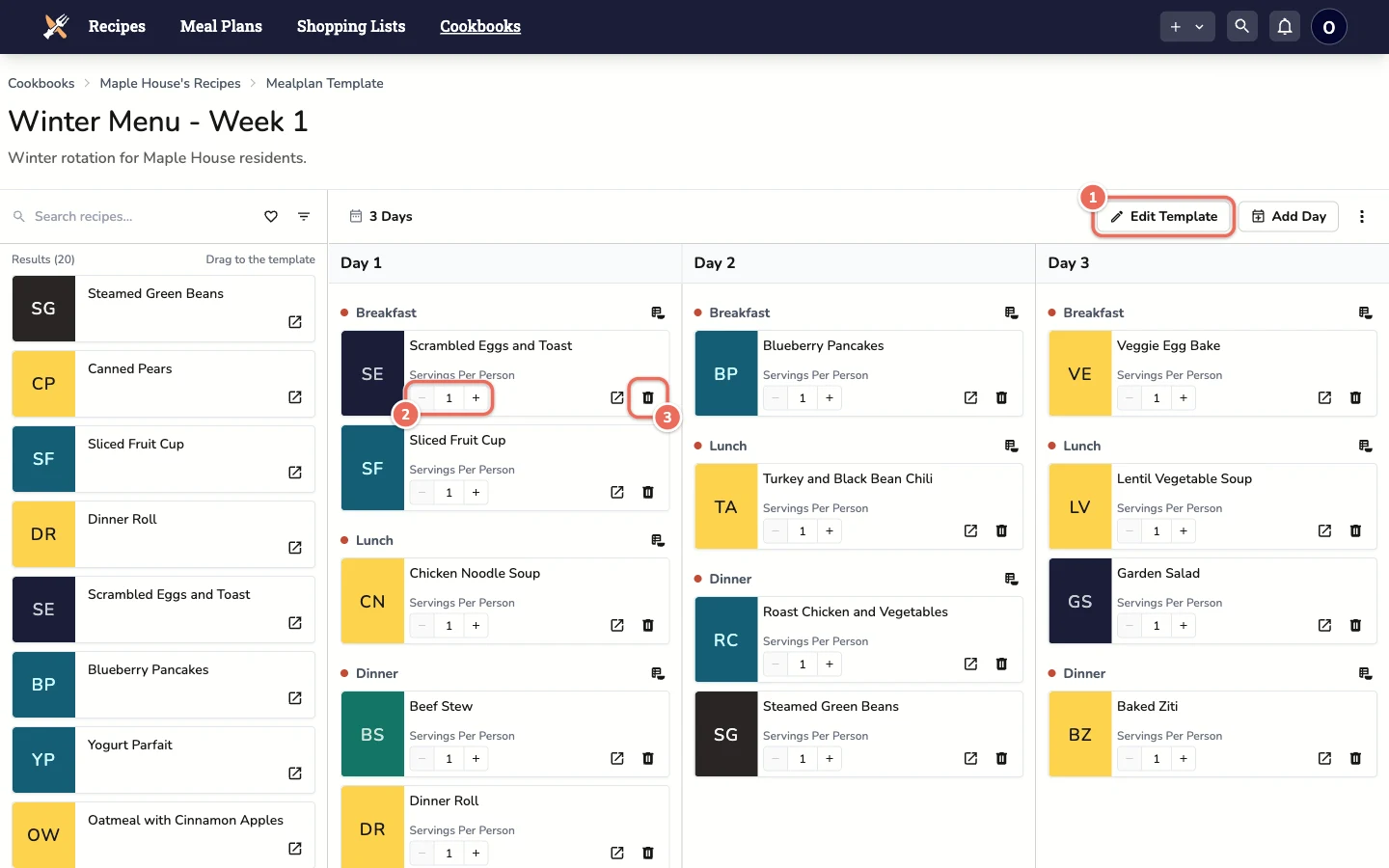
- Edit Template - change the name, description or meals, or delete the template.
- Servings Per Person - how many servings of this recipe each person gets. For example, set a dinner roll to 2 if everyone gets two rolls.
- Delete - remove a recipe from that meal.
Tips for Facility Rotations
- One template per week keeps rotations easy to apply. Name them in order, like “Week 1”, “Week 2” and “Week 3”.
- Plan only the meals you serve. If you only serve lunch, create the template with only Lunch checked.
- Use the nutrition pane (when your account has nutrition analysis) to check each meal against your standard while you build the template.
Related Articles
Last revised: