Moving Days in Your Meal Plan
Sometimes you need to shift your meal plan dates forward or backward. The Move Days feature allows you to relocate planned meals from one date range to another without having to rebuild your meal plan.
Video Tutorial
When to Move Days
Common scenarios for moving days include:
- Schedule changes: Facility closing or opening dates shift
- Event rescheduling: Special events moved to different dates
- Planning adjustments: Need to start your meal plan earlier or later
- Holiday shifts: Observed holidays change your operating schedule
Step-by-Step Process
1. Open Edit Meal Plan
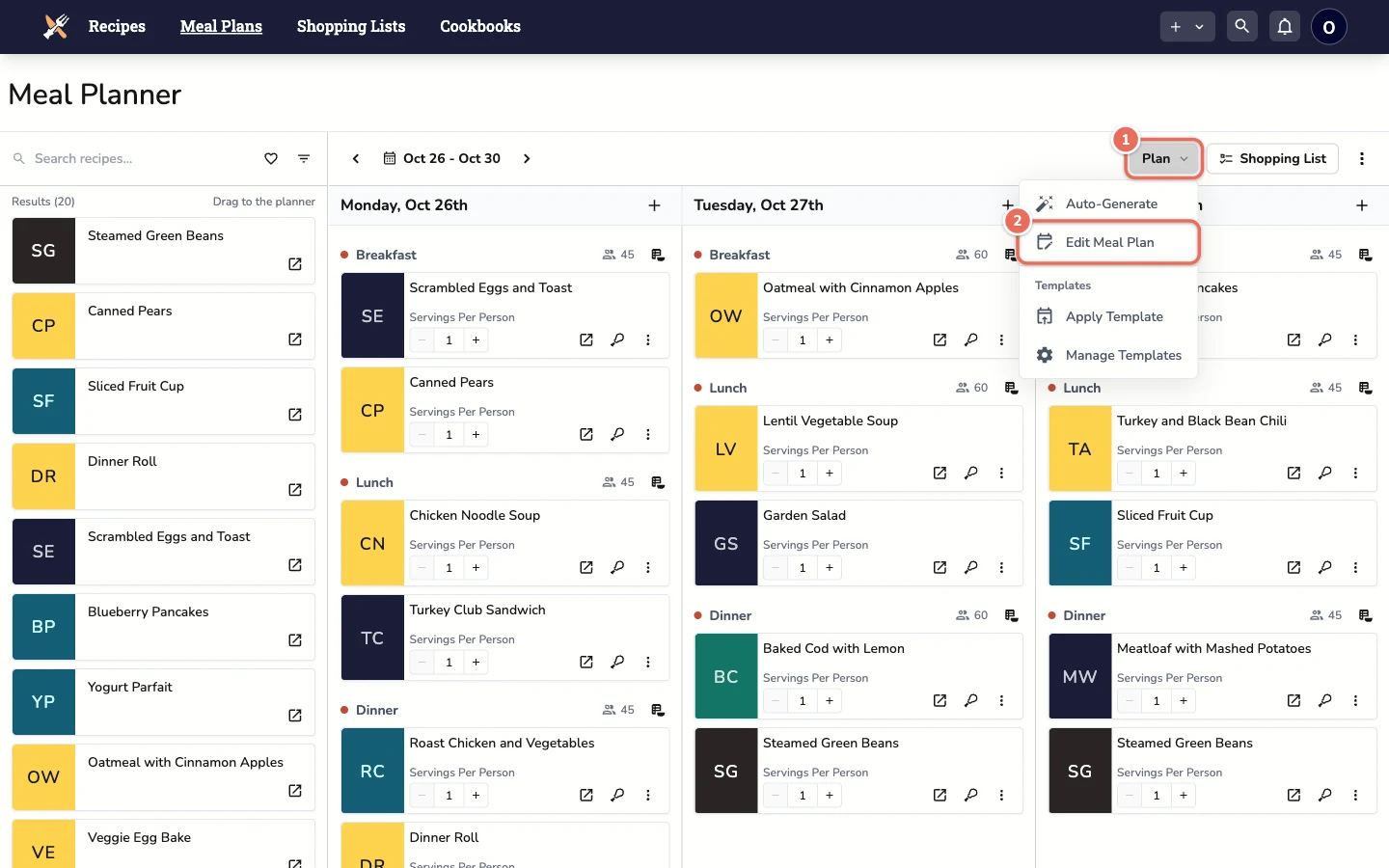
From the meal plan page, click the Plan button, then click Edit Meal Plan.
2. Choose Move and the Dates
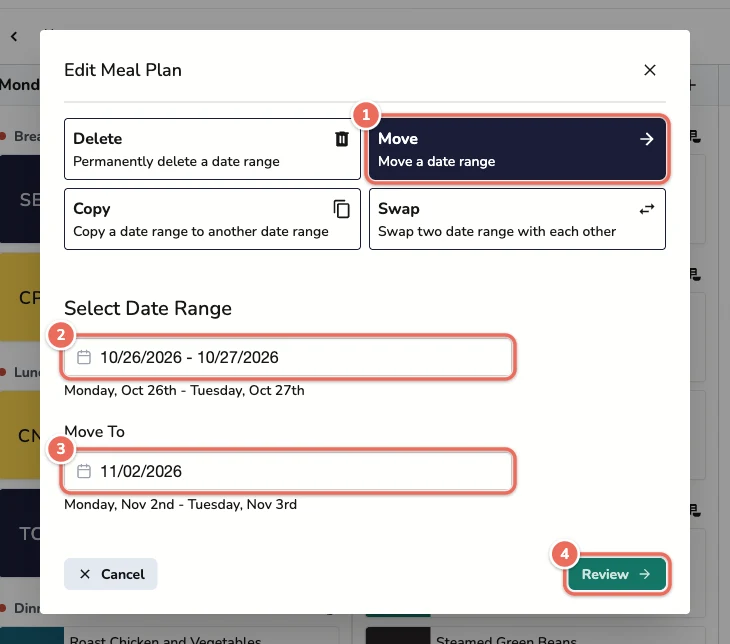
- Select Move
- Under Select Date Range, pick the days you want to move, then click Select
- Under Move To, pick the new start date. The end date is filled in for you so the range keeps the same length
- Click Review
3. Confirm the Move
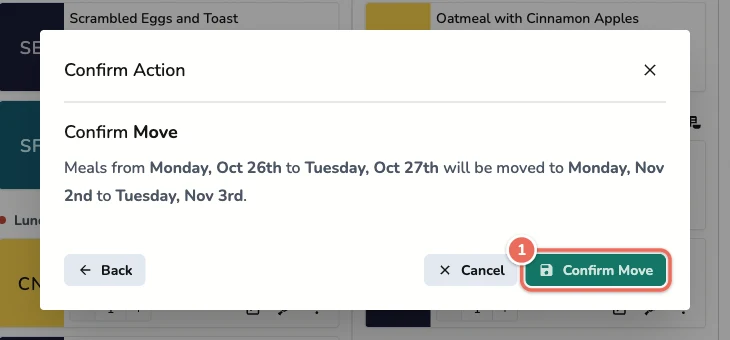
Check the summary, then click Confirm Move.
Important Notes
- Moving preserves all settings: Serving sizes, substitutions, and customizations are maintained
- Original dates are cleared: The “from” date range will be empty after the move
- Overlapping dates: If the “to” range already has meals, they will be replaced
Alternative: Copying Days
To keep the original days and put the same meals on new dates, choose Copy instead of Move in the Edit Meal Plan dialog. The steps are the same.
Alternative: Swapping Days
If you want to exchange the contents of two date ranges (rather than moving from one to another), use the Swapping Days feature instead.
Related Articles
Last revised: