Swapping Days in Your Meal Plan
The Swap Days feature allows you to exchange the contents of two date ranges in your meal plan. This is useful when you want to trade the meals between two different periods.
Video Tutorial
When to Swap Days
Common scenarios for swapping days include:
- Variety management: Avoid menu repetition by rearranging meal schedules
- Ingredient availability: Swap meals based on when ingredients are available
- Preference adjustments: Respond to resident or staff preferences for specific days
- Testing menus: Try different meal combinations on different days of the week
Step-by-Step Process
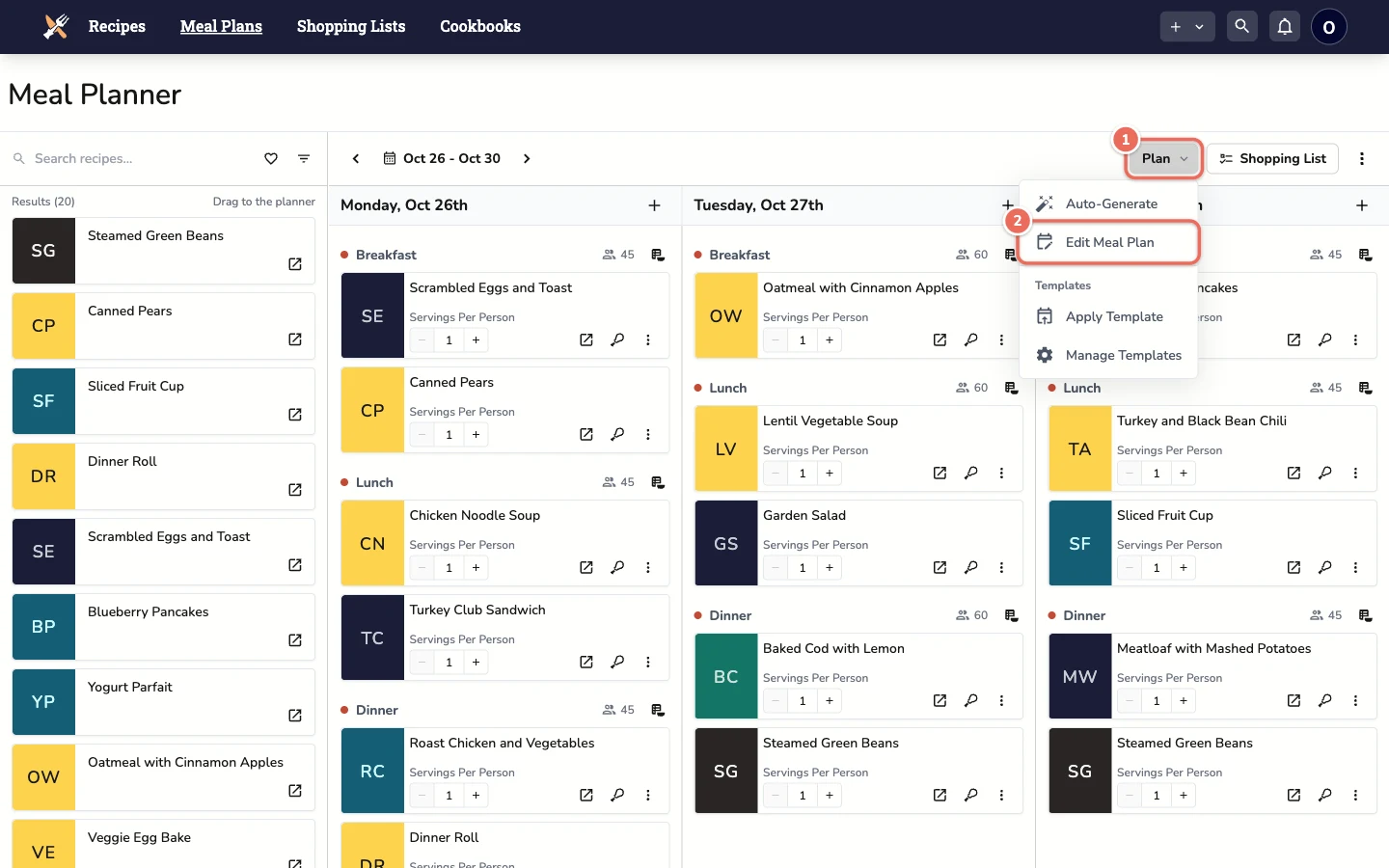
1. Open Edit Meal Plan
From the meal plan page, click the Plan button, then click Edit Meal Plan.
2. Choose Swap and the Dates
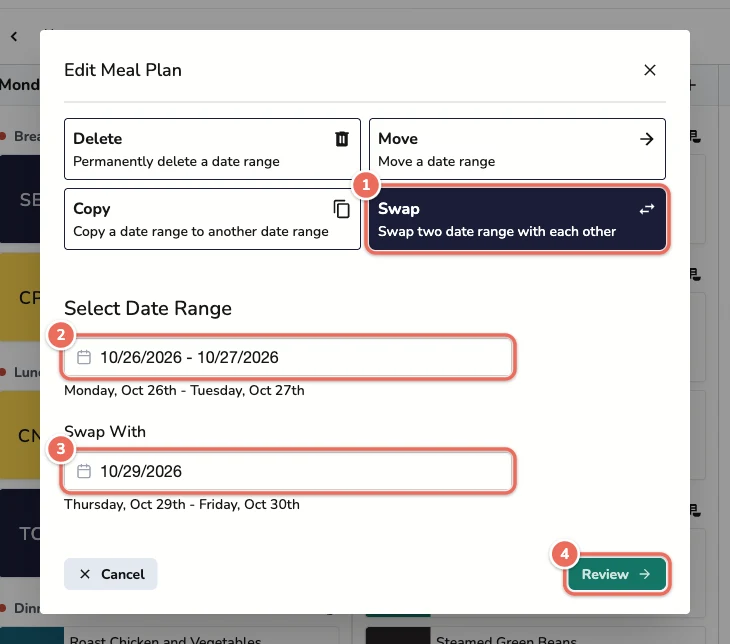
- Select Swap
- Under Select Date Range, pick the first range you would like to swap, then click Select
- Under Swap With, pick the start of the second range. It covers the same number of days as the first
- Click Review
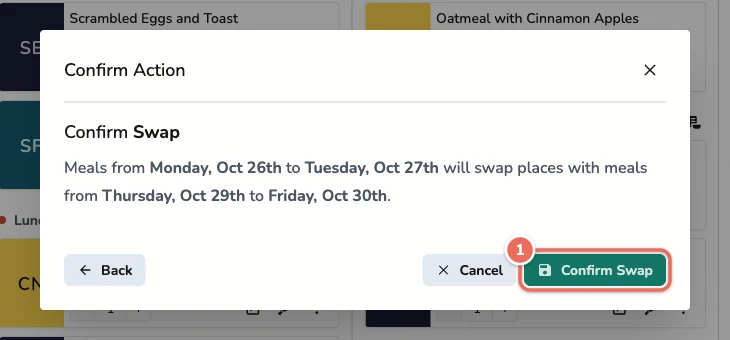
3. Confirm the Swap
Check the summary, then click Confirm Swap. The meals from the first range are now in the second range, and the other way around.
Important Notes
- Two-way exchange: Both date ranges exchange their contents
- All settings preserved: Serving sizes, substitutions, and customizations move with the meals
- Equal ranges: Both ranges cover the same number of days
Difference from Moving Days
- Swap: Exchanges the contents of two date ranges (both are affected)
- Move: Relocates one date range to another location (only destination is affected)
Use Moving Days if you want to relocate meals without exchanging them.
Related Articles
Last revised: