
Using API Tokens
API tokens let your scripts and applications work with Recipinned outside the browser. Use them for a custom recipe migration, a personal tool, or a workflow that reads and updates your data through the API.
To connect an AI assistant through a sign-in screen, use Connecting AI Assistants with MCP.
Note: A token can only perform actions allowed by both its selected permissions and your account access. You can give it read-only access to supported areas, but cannot restrict it to an individual cookbook. Your account’s feature and subscription limits still apply.
Create an API Token
Steps
-
Open API Tokens
- In Recipinned, open Settings from your account menu (Account & Settings on mobile).
- Under Integrations, select API Tokens. You can also open the API Tokens page directly.
-
Create API Token
- Click Create API Token.
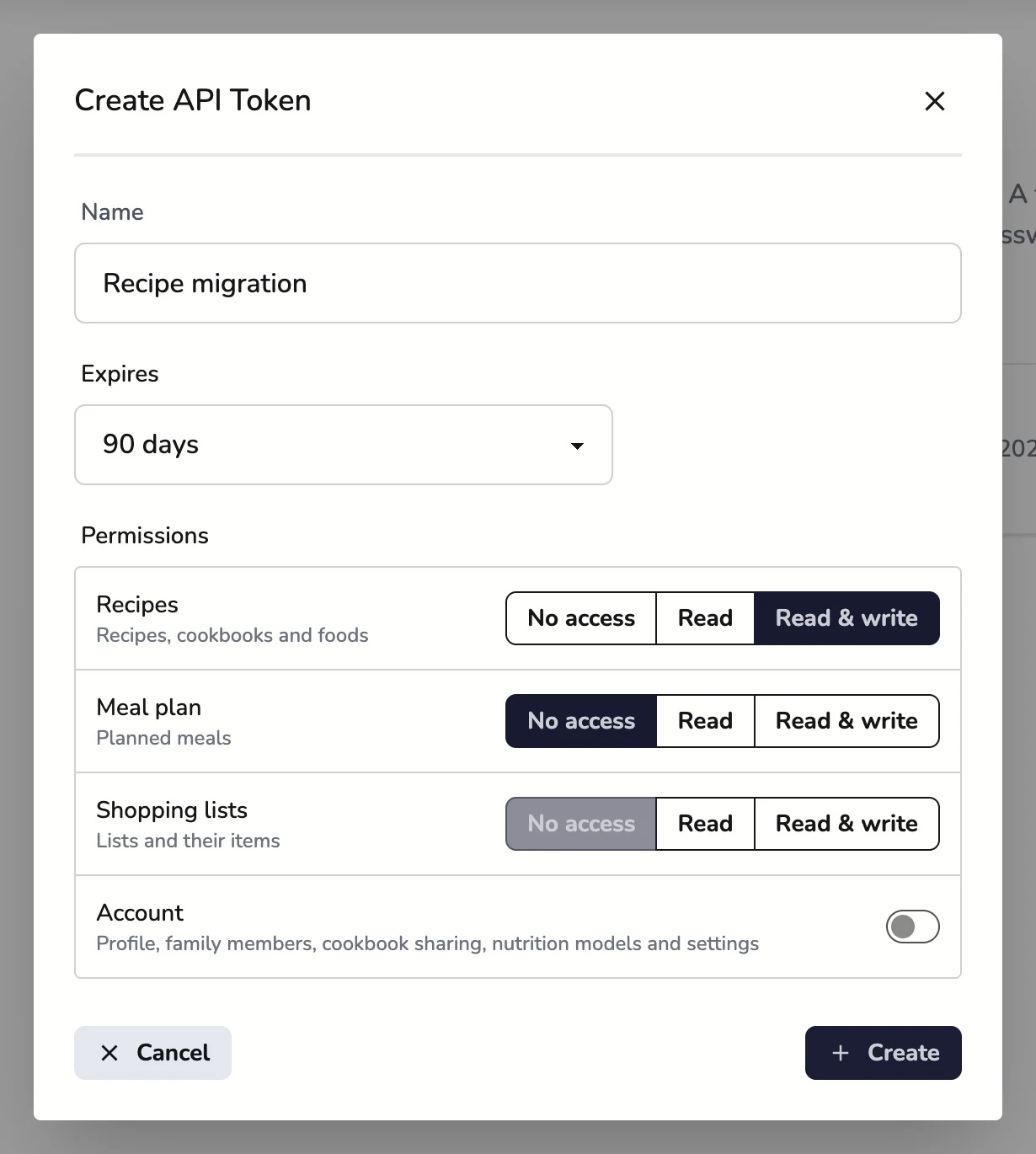
- Enter a Name that identifies the tool, such as “Recipe migration”.
- Choose Expires: 30 days, 90 days, 1 year, or Never. The default is 90 days.
- Under Permissions, choose only the access your tool needs. For the recipe import example below, give Recipes read and write access.
- Click Create. Your account email must be verified to create a token.
-
Copy Your API Token
- Copy the value under API Token and store it securely before closing the dialog.
- Click Close when you have saved it.
Recipinned shows the full token only once. If you lose it, delete that token and create a replacement. Use a separate token for each tool so you can revoke one without interrupting the others. Permissions cannot be changed after creation; create a replacement token if the tool needs different access.
Make Your First Request
Send the token in the Authorization header as Bearer <token>. For
app.recipinned.com, API requests start with https://app.recipinned.com/api/v1.
Set RECIPINNED_API_TOKEN in your script’s environment using your secret
manager or local configuration. Keep it out of source control and public
examples. Then try this read-only request:
curl --fail-with-body \
  --header "Authorization: Bearer ${RECIPINNED_API_TOKEN}" \
  https://app.recipinned.com/api/v1/users/self
This returns your account information as JSON and does not change your data. A successful request confirms that your script can authenticate.
On the API Tokens page, API reference opens the available endpoints, request bodies, and responses. You can also open the API reference here.
For tools that accept an API definition, use the OpenAPI specification (JSON).
Note: The API reference is in Public Preview. Check it when building or updating a script, and start with a small request before running a large job.
Import Recipes from Your Own Script
For a custom migration, convert your source data into Schema.org Recipe JSON.
The schema import endpoint accepts up to 25 recipes per request in a recipes
array.
Steps
- Prepare a Small Batch
- Start with one or two recipes so you can check ingredients, instructions, servings, and images before importing the rest.
- Save a request body like this as
recipes.json:
{
  "recipes": [
    {
      "@context": "https://schema.org",
      "@type": "Recipe",
      "name": "Simple Rice",
      "recipeYield": "2 servings",
      "recipeIngredient": ["1 cup rice", "2 cups water"],
      "recipeInstructions": [
        "Combine the rice and water in a saucepan.",
        "Bring to a boil, cover, and simmer until the rice is tender."
      ]
    }
  ]
}-
Choose the Destination Cookbook
- Request
GET /api/v1/collections?filter=editorwith your Bearer header to list cookbooks you can edit. The API calls cookbooks “collections”. - Find your destination cookbook in the response and copy its
id. - Set
RECIPINNED_COLLECTION_IDto that ID. Your account needs editor access to the destination.
- Request
-
Submit the Batch
- Send the JSON file to the schema import endpoint:
curl --fail-with-body \
  --request POST \
  --header "Authorization: Bearer ${RECIPINNED_API_TOKEN}" \
  --header "Content-Type: application/json" \
  --data-binary @recipes.json \
"https://app.recipinned.com/api/v1/collections/${RECIPINNED_COLLECTION_ID}/recipes/schema"- Check Each Result Before Continuing
- Inspect the result for every recipe, then open the imported recipes in Recipinned.
- A response with HTTP status
200can include individual recipe failures;201means all recipes in the request were created. - Split larger imports into batches of at most 25. Record successful imports so retries do not submit those recipes again.
This is a workflow for building your own migration. The source app’s export format determines what conversion your script needs. See Importing Recipes from Schema.org JSON for the browser-based alternative.
Revoke or Replace a Token
Steps
-
Find the Token
- Return to Settings > Integrations > API Tokens.
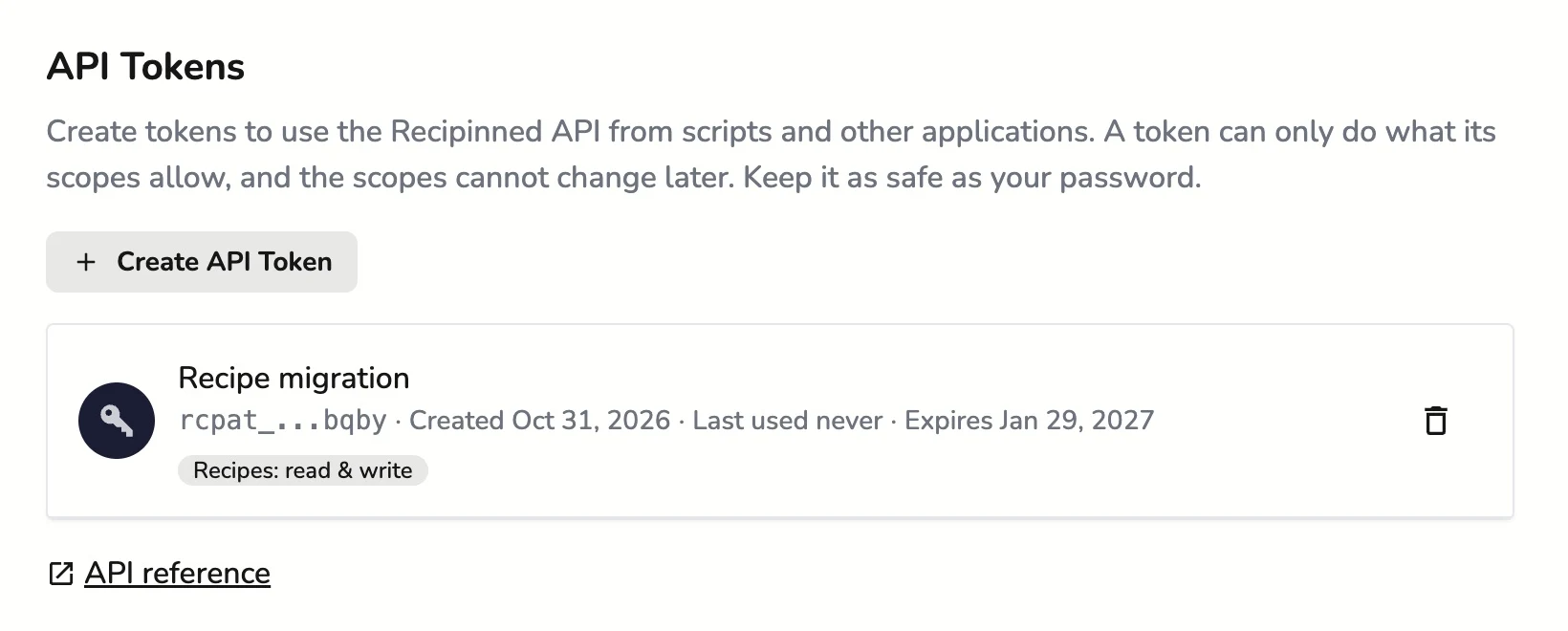
- Identify it by name and the last four characters. The list also shows when it was created, last used, and when it expires.
-
Delete the Token
- Click its trash icon, then confirm with Delete Token.
- Every application using that token immediately loses access.
To replace an expiring token, create a new one, update your tool’s configuration, confirm a request succeeds, and delete the old token. If a token is exposed, delete it immediately and issue a replacement.
Troubleshooting
Unauthorized request: Check that the environment variable contains the full
token, that the header begins with Bearer , and that the token has not expired
or been deleted.
Permission or subscription error: Confirm that the token has the required permissions and that you can perform the same action in Recipinned. Recipe imports need recipe write access; listing cookbooks needs recipe read access. Paid operations also require an active trial or subscription.
Cannot create or manage tokens from a script: Token management requires a signed-in browser session. Open API Tokens in Recipinned to create or delete tokens.
Related Articles
Last revised: